

6 Steps for Cyber Monday Basswood Orders (2026)
A personalized basswood order workflow keeps names, dates, and short messages accurate from the first message to the packed box, especially during a busy week like Cyber Monday. This guide walks through 6 steps you can use to collect details, confirm spelling, batch cuts, and check each piece before it ships.
This post contains affiliate links. As an Amazon Associate I earn from qualifying purchases, at no extra cost to you. Learn more.
By Mike Dolan ·
Quick Answer: This 6-step workflow covers collecting personalization details, confirming spelling with the buyer, using one template per product, batching cuts on a sheet, testing on scrap, and checking each piece before packing it flat.
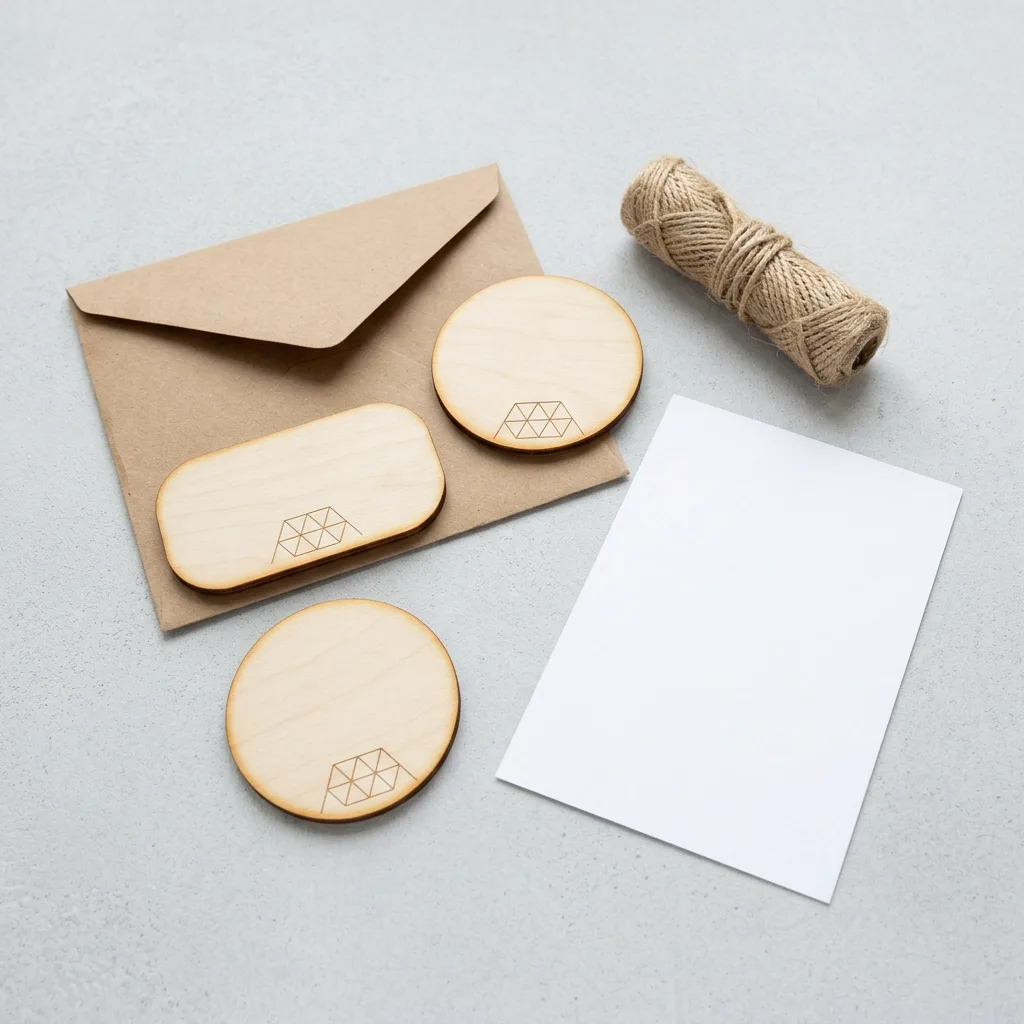
Why Personalized Orders Need a Repeatable Routine
Personalized orders on 3mm basswood tend to go wrong for the same few reasons: unclear personalization details, text that was never confirmed, or a rushed cut before the file was checked. A repeatable routine for collecting, confirming, and checking text catches these problems before a sheet is cut, not after.
6 Steps to Handle a Personalized Basswood Order
- Collect the personalization details in one labeled format. Ask for the text exactly as it should appear, a date if the piece needs one, a short message if the listing allows one, the buyer’s preferred capitalization, and a line asking them to confirm the spelling is correct. The Etsy custom options guide covers how to structure this as a personalization field.
- Confirm the spelling and full text before any file work starts. Repeat the text back to the buyer in a message or order note and wait for a clear yes before opening a design program. This single pause catches more mistakes than any amount of careful cutting afterward.
- Build one reusable design template per product. Lock the geometry that never changes and leave a single editable text field open, so a repeat order only needs new text dropped in rather than a new layout built from scratch.
- Batch similar orders onto one 12×12 inch sheet. Group pieces that share the same product, layout, and material, and sort them further by text length and finishing needs so a sheet does not mix pieces that need different settings.
- Run a proof or test cut on scrap basswood first. Do this especially when the material, text length, or machine settings have changed, and check size, alignment, and burn behavior before committing the final sheet. The test card playbook walks through building a reusable settings reference.
- Check each finished piece against the confirmed text. Look for spelling, completeness, and visible defects such as scorching or cracking, then pack the piece flat with protection before it moves to the next stage. A wrong name wastes a full sheet, so this check matters as much as the one before cutting.
Keep an Order Log for Every Personalized Piece
An order log answers one question at a glance: does this piece match what the buyer approved. It does not need to be elaborate, just consistent enough that nothing slips through during a busy week.
- Order identifier - links the piece and the buyer’s message so you can trace either one back to the other at any point.
- Text confirmed - a yes or no field, with the exact approved wording noted or linked directly to the message where the buyer confirmed it.
- Status - a short label such as New, Awaiting Confirmation, Approved, Queued, Cut, Checked, Packed, or Shipped.
- Packed - a simple yes or no so nothing leaves the workspace before it has actually been checked and wrapped.
The log can be a spreadsheet, a notebook, or whatever format the shop already uses. What matters is that the confirmed text stays attached to the order all the way through cutting and packing, so the wrong piece never ends up in the wrong order. The order tracking system guide has a fuller template if the shop is starting from nothing.
Keep Stock and Processing Time Honest During Sale Week
Check actual 3mm basswood sheet stock and realistic processing time before sale week gets busy, rather than assuming extra orders will simply fit into the existing schedule. Material runs out faster than expected once personalized orders stack up, and a processing time set in a quiet month may not hold once order volume shifts.
No specific sales volume, order count, or income from Cyber Monday 2026 should be promised or implied in a listing or blog post. Confirm current marketplace personalization and processing-time rules directly on the marketplace’s own policy and help pages, since these details change and should be checked first-hand rather than assumed from last year. Check your own calendar and material stock before raising listing quantities or promising faster turnaround, and review the Black Friday prep guide for a fuller capacity check.
4 Problems That Come Up With Personalized Batches
- Misspelled name. Cause: the final design file was never compared against the confirmed order text before cutting. Fix: copy the approved text directly from the order log into the file and read it again before sending it to the cutter.
- Buyer changes details late. Cause: a message arrives after the file has already been queued or cut. Fix: set a clear point in the order log, such as moving to Queued or Cut status, after which changes may mean starting a new piece, and tell the buyer plainly if a late change affects their order.
- Batch edges differ between sheets. Cause: inconsistent nesting or manual placement each time a batch is set up. Fix: use the same template and the same layout approach for each batch of a given product so pieces line up the same way sheet to sheet.
- Template shifts position. Cause: an unlocked or accidentally moved template element during editing. Fix: lock the non-editable geometry in the template file, unlock only the specific text field being edited, and check placement before cutting.
These same habits carry over to other personalized formats, including the personalized ornaments guide and the engraved signs guide, where the same template-and-confirm approach applies.
After Cyber Monday: Review and Reuse the Templates
Once the Cyber Monday 2026 rush has passed, look back at the order log and note what actually happened against what you expected. Check which steps took longer than planned, where confirmations were missed or delayed, and whether batching caught sheets that needed fixing before they went to the cutter.
Keep the reusable templates built for Cyber Monday on hand for Christmas orders, since the product format often stays the same even though the text changes from order to order. Revisit packing habits too, since the flat-pack shipping guide and the Etsy fee guide both affect how a holiday schedule actually plays out once orders are shipped. None of this guarantees a particular order volume or outcome for Christmas. Check your own order log and current marketplace processing-time settings before committing to a holiday schedule, and pull templates from the free Crafteker laser file bundle if you need a starting layout rather than building one from scratch.
Where to Get 3mm Basswood for Your Personalized Orders
Crafteker 3mm basswood sheets are 12×12 inch, laser-grade, void-free and pre-sanded: a pale, even surface for engraving and paint, and consistent sheets for repeat batches. At $24.99 for 12 sheets ($2.08/sheet), test pieces cost very little. Need designs? Grab the free Crafteker laser file bundle.
Ready to cut your next batch?
Tools & Materials Used

Laser-ready basswood for the projects in this guide.
Padded mailers for flat items.
Prints shipping labels without ink.
Joining layered parts.
Frequently Asked Questions
Should I send buyers a proof before cutting their personalized basswood piece?
That depends on the shop’s own policy, not a fixed rule. If you decide to send a proof, say so clearly in the listing and confirm the exact text with the buyer before cutting begins either way.
What’s the best way to avoid cutting a misspelled name into basswood?
Copy the confirmed text from the buyer’s message or your order log directly into the design file, then read it again before sending the file to the laser. Checking spelling before cutting matters because a wrong name wastes a full sheet.
Can several personalized pieces share one 12×12 inch basswood sheet?
Yes, when the pieces use the same product, layout, and material and fit safely together. Group similar orders by text length and finishing needs before nesting them on the sheet.
Should I tell buyers when their order will arrive?
State your own processing time accurately, but don’t promise a carrier delivery date. Point buyers to the carrier’s tracking page for delivery updates once the order has shipped.
Will this workflow guarantee more sales on Cyber Monday 2026?
No. This is a workflow for handling personalized orders accurately and on time, not a sales or income promise. Check current marketplace rules and your own processing times before the sale week starts.
About the author: Mike Dolan is a laser maker and wood materials specialist with 8+ years cutting basswood, birch, and MDF on diode and CO₂ machines.
Confirm the spelling before you cut, test on scrap and keep a simple order log. Check current marketplace rules and carrier dates yourself.