
4-Step AI Workflow for Laser Cut Basswood Projects (2026)
AI image generators can produce laser-cuttable designs for 3mm basswood, but raw AI output almost never cuts cleanly without vectorization and path cleanup first. This guide walks through the 4-step workflow makers use to go from a text prompt to a tested, laser-ready SVG or DXF file.
By Mike Dolan ·
Quick Answer: AI-assisted design workflows for laser cut basswood projects require four steps: AI image generation, vectorization, laser-specific AI tools or manual path cleanup, and validation before cutting.
| Material | Engraving Contrast | Cut Ease | Smoke / Odor | Cost | Beginner Score |
|---|---|---|---|---|---|
| Basswood (3 mm) | ★★★★★ | Excellent – 1 pass | Low | $ | ★★★★★ |
| Baltic Birch Plywood | ★★★★ | Good – 2-3 passes | Medium | $$ | ★★★★ |
| MDF | ★★★ | Good – 1-2 passes | High (formaldehyde) | $ | ★★ |
| Pine / Soft Plywood | ★★★ | Poor – resin deposits | Medium-High | $ | ★★ |
Why Use AI in Your Laser Cutting Design Workflow?
AI tools speed up the idea-to-cuttable-file process, especially for makers who can picture a design but don’t have vector-drawing skills. The typical workflow runs in four steps: AI concept generation, vectorization, manual path cleanup, then a test cut on scrap.
I tried sending a raw AI-generated image straight to the laser without vectorizing it first. The software either rejected the file outright or the “cut” attempted to trace a gradient and shading instead of a clean line. Ask me how I know vectorization isn’t optional.
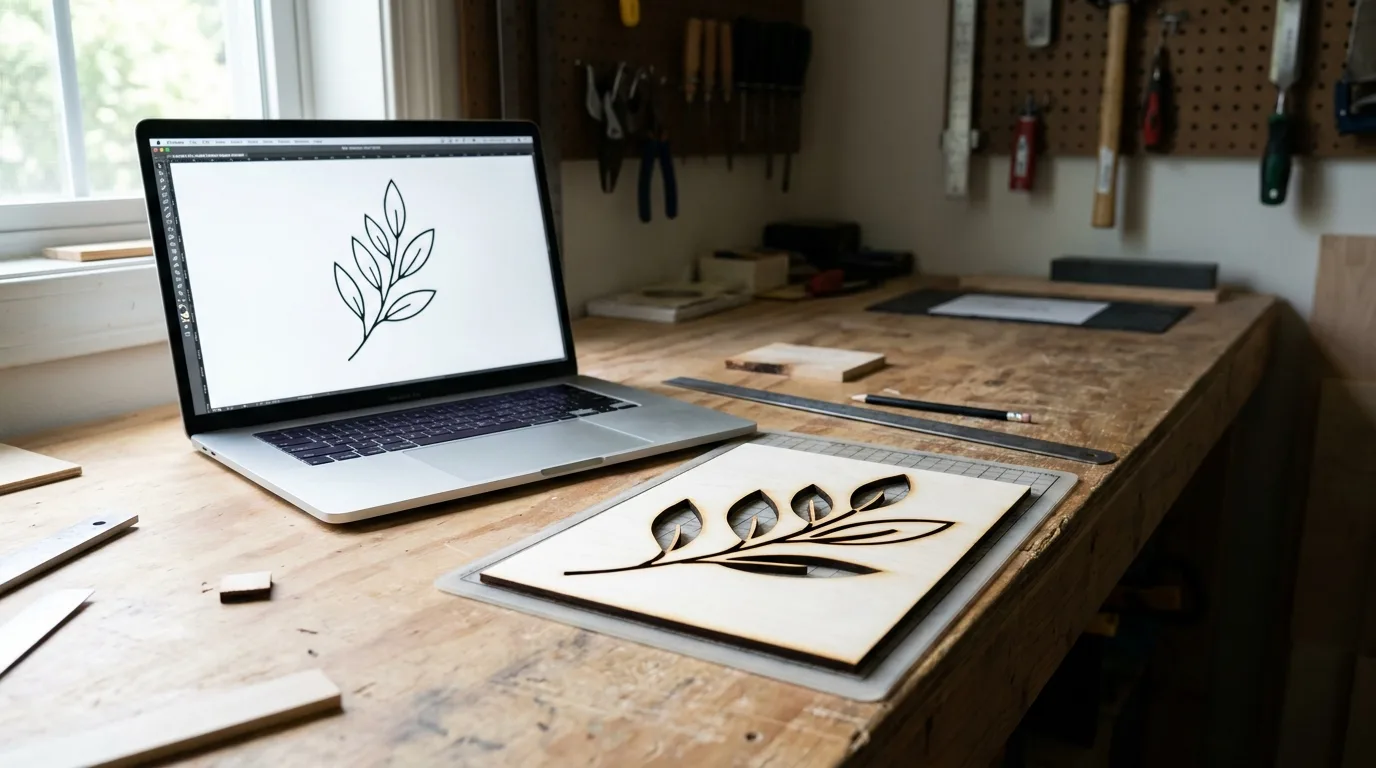
According to USDA Forest Products Laboratory data, basswood ranks among the lowest-resin domestic hardwoods with remarkably consistent density. No matter how sophisticated your design workflow gets, cut quality still comes down to the wood. A consistent low-resin material like basswood sheets for laser cutting gives an AI-generated design its best shot at cutting clean on the first try.
- Low resin – keeps AI-generated line art cutting clean without gummy residue building up on fine detail
- Consistent density – predictable results batch to batch, one less variable when testing a new AI-generated file for the first time
- Light, workable surface – easy to sand or finish an AI-designed piece after cutting
- No toxic fumes – safe to cut indoors while iterating quickly on AI-generated design variations
- Not a substitute for a clean vector file – the honest limit that makes vectorization and path cleanup a required step, not an optional one, no matter how good the material is
The 4-Step AI-to-Laser Workflow
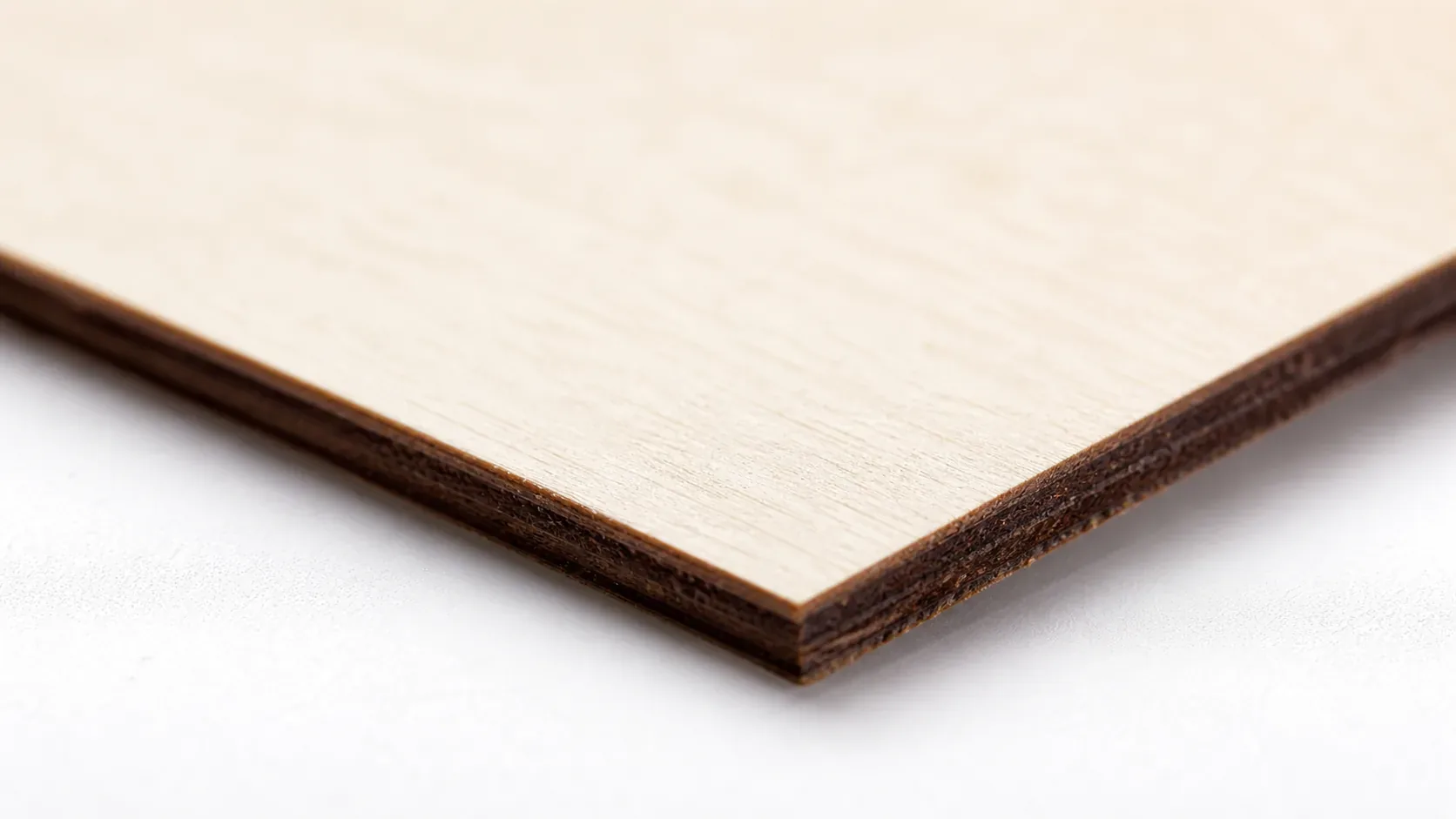
AI-assisted laser design workflows break into four steps. Most projects use tools from more than one row – a laser-specific AI tool can sometimes skip the separate vectorization step, but path cleanup and validation still matters either way.
| Step | Tool Examples |
|---|---|
| AI image/concept generation | Midjourney, DALL-E, ChatGPT image tools |
| Vectorization/tracing | Inkscape Trace Bitmap, Adobe Illustrator Image Trace, Vectorizer.AI |
| Laser-specific AI tools | LaserBurn AI, SVGMaker (built to output laser-ready SVG/DXF directly) |
| Path cleanup and validation | LightBurn, Inkscape node editing, checking for open or overlapping paths before cutting |
A laser-specific AI tool can save time by outputting SVG or DXF files with cut and engrave boundaries already separated. You still need to validate the result before sending it to the laser.
I tested a laser-specific AI tool that produced a mostly-clean file – the design looked ready to cut, but I caught two overlapping nodes and one open path when I checked it in LightBurn. Fixed those by hand, and the test piece cut clean on the first try. The tool saved most of the vectorization work, but skipping the validation step would have wasted a sheet.
Why Raw AI Output Usually Isn’t Laser-Ready
General AI image generators output raster JPG or PNG images with shading, gradients, and complex textures. A laser needs a clean vector path to follow – a single-line kerf instruction, not a photo with thousands of pixels and smooth color transitions. Sending a raster image straight to laser software either gets rejected outright or produces an engrave that attempts to trace every gradient and shadow instead of cutting a clean outline.
Even after vectorization, common problems show up: open or overlapping vector paths where the tracing algorithm couldn’t decide how to connect shapes, tiny stray nodes that produce random laser movements, and overly fine detail lines that look crisp on screen but char or fail completely on 3mm wood. An AI-generated mandala might have intricate filigree that renders beautifully as pixels but translates into hairline vector paths too fragile to survive the kerf width and heat of an actual laser pass.
I generated a design that looked sharp and detailed on my laptop screen – clean black lines, nice symmetry, exactly what I wanted. Ran it through vectorization, loaded it into LightBurn, and cut a test piece. Several of the finest detail lines either didn’t cut through at all or burned out completely, leaving charred gaps instead of crisp edges. The vector paths were so thin they couldn’t hold up to the kerf width on 3mm best basswood sheets for laser cutting. I simplified the design by hand, thickened the fragile lines, and the second test cut worked perfectly.
How to Prompt AI for Laser-Ready Designs
Ask the AI generator explicitly for clean outlines, line art only, no shading or gradients, and closed simple shapes rather than photorealistic detail. Most general-purpose AI image tools default to rich textures and lighting that look impressive on screen but translate to unusable vectors.
I rewrote a prompt to explicitly ask for “line art, no shading, closed shapes” after an earlier attempt came back photorealistic and unusable for vectorization. The second version traced clean without a single stray node.
Run the result through a vectorization tool even if it already looks like line art – AI generators output raster files, and what appears to be a clean outline on screen often contains subtle gradients or anti-aliasing that confuses the laser. Check the vectorized file for open or overlapping paths before sending it to the laser. Run a test cut on scrap basswood before committing to a full sheet. One test piece catches problems a screen preview will miss.
Common Mistakes with AI-Generated Laser Designs
- Sending a raw AI-generated raster image straight to the laser without vectorizing it first: The software will either reject the file outright or attempt to trace shading and gradients instead of following a single clean kerf path.
- Skipping the check for open or unclosed paths after vectorization: An open path produces a partial cut or engraving pass instead of a clean through-cut, and overlapping nodes can cause double-burns or stalling.
- Keeping overly fine or fragile AI-generated detail lines that won’t survive on 3mm wood instead of simplifying them: Detail that looks crisp on screen often chars out completely or fails to cut through on real basswood. Simplify before you cut.
- Not checking the commercial-use and licensing terms of the AI tool before selling a physical product made from its output: Some platforms restrict commercial use or require attribution. Read the terms before you list on Etsy.
Where to Buy Basswood for AI-Designed Laser Projects
Crafteker 3mm basswood sheets are consistent, void-free, and pre-sanded – the wood is one less variable to troubleshoot when dialing in a new AI-generated file. At $24.99 for 12 sheets ($2.08/sheet), the 12-pack offers the best value for testing and production runs. Also available in a 5-pack ($15.97) and 3-pack ($12.99) for smaller projects.
Ready to cut? Get the wood that works with AI-designed projects:
→ Buy Crafteker 12-Pack Basswood Sheets on Amazon – $24.99
Also available: 5-pack ($15.97) · 3-pack ($12.99)
Frequently Asked Questions
Can I use AI to design laser cut wood projects?
Yes. Generate a concept with an AI image tool, vectorize it, clean up the paths, then test cut on scrap before a full run. The workflow works for 3mm basswood as long as you validate the file for open paths and overly fine detail first. I learned this after sending a raw AI output straight to the laser and watching it try to trace gradients instead of cutting clean lines.
Why won’t my AI-generated image cut cleanly on the laser?
Raster images with shading and gradients don’t translate to vector kerf paths. The file needs vectorizing and checking for open paths and overly fine detail first. A laser follows a single-line path, not a photo. Ask me how I know – I ruined two test pieces before I figured out my AI tool was outputting JPGs with soft edges that confused the trace algorithm.
What tools convert AI images to laser-cuttable SVG or DXF files?
Inkscape’s Trace Bitmap, Adobe Illustrator’s Image Trace, Vectorizer.AI, and laser-specific tools like LaserBurn AI or SVGMaker. Laser-specific tools output SVG and DXF with boundaries separated for cut and engrave, but you still need to check for open paths. I’ve used a laser-specific AI tool that saved vectorization time but still left two overlapping nodes I had to fix by hand.
What should I include in an AI prompt for laser-cuttable designs?
Ask for clean outlines, line art only, no shading or gradients, and closed simple shapes instead of photorealistic detail. Explicitly request silhouettes or black-and-white line drawings, then vectorize and validate the result before cutting. I rewrote a prompt three times – adding “line art, no shading, closed shapes” – before I got something that actually vectorized without creating a thousand stray nodes.
Where can I buy basswood sheets for AI-designed laser projects?
Crafteker on Amazon: 3-pack $12.99, 5-pack $15.97, 12-pack $24.99 ($2.08/sheet best value for production runs). Consistent, void-free 3mm sheets mean the wood is one less variable when testing a new AI-generated file.
About the author: Mike Dolan is a laser maker and wood materials specialist with 8+ years cutting basswood, birch, and MDF on diode and CO₂ machines. He tests every Crafteker basswood batch before listing.
Used Midjourney to generate a mandala design, ran it through Vectorizer.AI, cleaned up three overlapping nodes in Inkscape, and it cut perfectly on my first test piece. The Crafteker basswood helped – consistent density meant I didn’t have to troubleshoot the wood and the file at the same time.