
Snapmaker 2.0 10W Basswood Settings 3mm Complete Guide 2026
The Snapmaker 2.0 10W laser cuts 3mm basswood at 4.5 mm/s with 100% power in a single pass for clean, production-ready results. In this guide, you’ll learn the exact settings, step-by-step workflow, and pro tips to dial in your 10W module for repeatable, char-free cuts every time.
By Mike Dolan ·
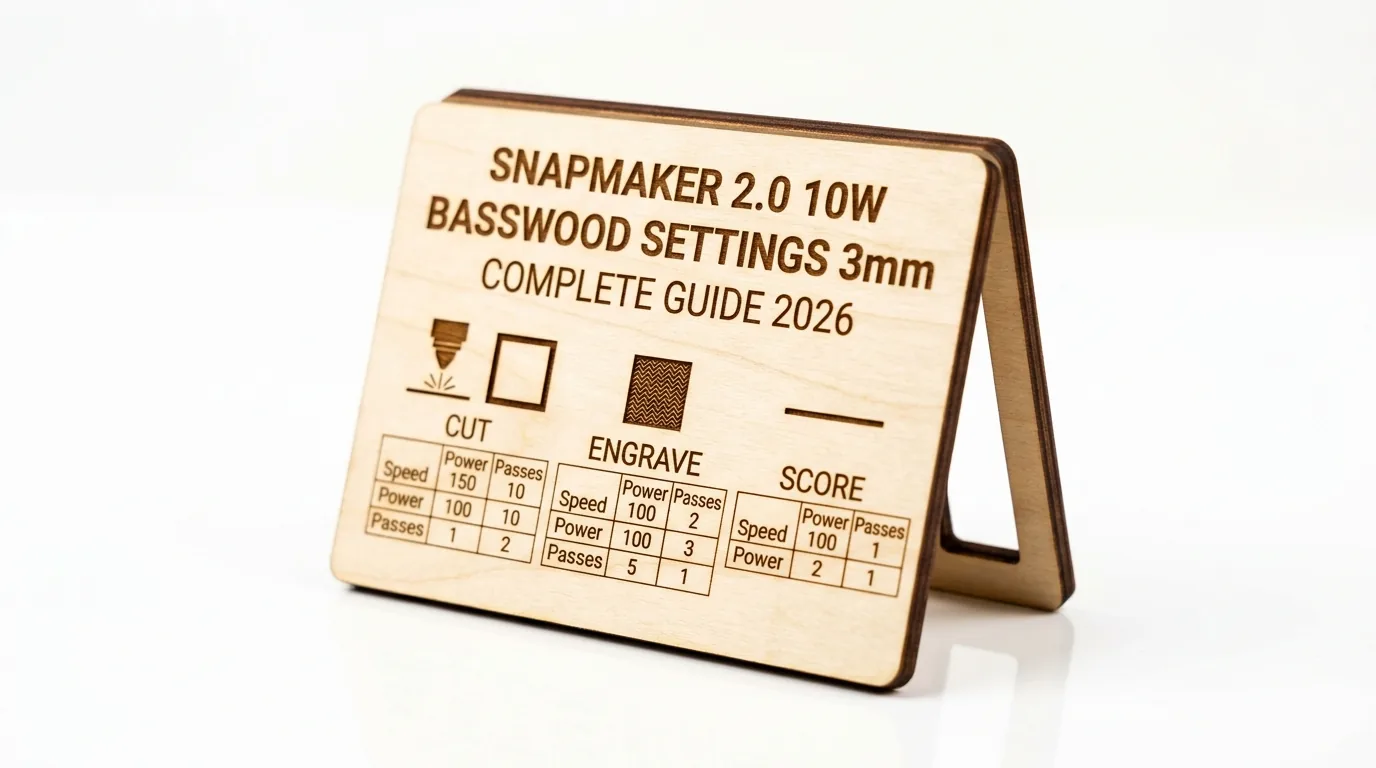
Quick Answer: Snapmaker 2.0 10W basswood settings for 3mm: cut at 4.5 mm/s, 100% power, 1 pass; engrave at 110 mm/s, 30% power. Use air assist.
| Material | Engraving Contrast | Cut Ease | Smoke / Odor | Cost | Beginner Score |
|---|---|---|---|---|---|
| Basswood (3 mm) | ★★★★★ | Excellent – 1 pass | Low | $ | ★★★★★ |
| Baltic Birch Plywood | ★★★★ | Good – 2-3 passes | Medium | $$ | ★★★★ |
| MDF | ★★★ | Good – 1-2 passes | High (formaldehyde) | $ | ★★ |
| Pine / Soft Plywood | ★★★ | Poor – resin deposits | Medium-High | $ | ★★ |
Why Is Basswood the Best Wood for the Snapmaker 2.0 10W?
Basswood is the ideal material for diode lasers like the Snapmaker 2.0 10W because it combines low resin content with predictable, uniform density. This combination delivers clean cuts and sharp engraving contrast without the maintenance hassles of high-resin woods. Learn more about best basswood sheets for laser cutting to source premium material.
- Low resin content – protects the open-frame diode lens from sticky deposits and extends maintenance intervals between cleanings
- Consistent density – the same settings work batch after batch without retuning for thickness or hardness variation
- Minimal char – produces clean cut edges with air assist enabled, reducing post-processing time
- Light, workable surface – easy to sand, paint, or stain after cutting for finished products
- No toxic fumes – unlike MDF or treated plywood, safe for indoor use with basic ventilation and proper steps to prevent charring
What You’ll Need
- Basswood sheets: Crafteker 3mm basswood, 12×12 inch – 2-3 sheets for a standard cutting session or small production run
- Laser machine: Snapmaker 2.0 with 10W laser module (settings also transferable to xTool D1 Pro 10W, Sculpfun S30 Pro, or similar diode lasers)
- Design file: SVG or DXF cut file loaded into Snapmaker Luban (vector paths required for clean cut outlines)
- Air assist: Built-in Snapmaker air assist nozzle with pump confirmed running – essential for char-free edges at 100% power
- Finishing supplies: 150-grit sandpaper for light surface prep, painter’s tape or masking tape for engraving protection, isopropyl alcohol wipe for post-cut cleanup
Estimated time: 1-2 hours · Difficulty: Beginner · Profit potential: ~$2.08/sheet (Crafteker 12-pack) in materials → finished laser-cut pieces sell for $15-$40 on Etsy depending on design complexity
How Do I Get Clean Cuts on the Snapmaker 2.0 10W? Step-by-Step
Basswood’s low resin content and consistent grain structure make it exceptionally forgiving on diode lasers – but you still need a repeatable workflow to get production-quality results. Follow these six steps every session and you’ll get clean, minimal-char cuts that require almost no post-processing.
- Calibrate focus height precisely. Use the Snapmaker nozzle-to-material method: lower the laser head until the nozzle lightly contacts the basswood surface, then zero out the Z-axis. Even a 0.5mm error in focus height can result in incomplete cuts or heavy charring, so don’t skip this step – refer to our basswood laser cutting settings guide if you need a refresher on focus calibration techniques.
- Enable air assist in Luban and verify the pump is running. Open the air assist toggle in Snapmaker Luban before sending the job. Physically confirm the air pump is running by listening for airflow at the nozzle. Without air assist at 100% power, you’ll see heavy charring and a significant drop in cut quality through 3mm basswood.
- Secure the material flat with masking tape or light clamps. Any sheet lift during cutting will throw off focus mid-run and cause inconsistent kerf depth. Apply painter’s tape to the corners and edges, or use the Snapmaker workholding clamps. Flat material contact is especially important on longer cuts where slight warping can accumulate.
- Run a test cut on a scrap strip first. Before committing to your full sheet, cut a 20mm line and a small shape on a scrap piece at 4.5 mm/s, 100% power, 1 pass. Inspect the kerf: you should see a dark brown cut line with clean ivory edges and no uncut fibers on the underside. If the cut isn’t clean through, recheck focus and confirm air assist is active – don’t increase passes yet. Use a laser settings calculator to cross-check if you’re adapting these settings to a different sheet thickness.
- Execute the full cut job in Luban and monitor the first 10 seconds. Watch the smoke behavior at the start of the run. A thin white wisp carried away from the cut line by air assist is normal. Billowing dark smoke that lingers over the material is a sign air assist isn’t working properly – stop the job immediately and troubleshoot before continuing. Once the first few passes look clean, you can step away safely.
- Clean the lens and mirror after every 5-10 cuts. Power loss on diode systems accumulates faster than most users expect. Use a lens cleaning swab with isopropyl alcohol to wipe the focusing lens and mirror after each session. A dirty lens can reduce effective wattage enough that cuts that previously went through cleanly start leaving attached tabs – keeping optics clean is the single best maintenance habit for consistent output. To further minimize residue buildup, see our tips on how to prevent charring during wood laser cutting.
How Do I Get Clean Cuts on the Snapmaker 2.0 10W? Step-by-Step
- Calibrate focus height precisely: Use the nozzle-to-material method before every session – even a 0.5mm deviation in focus height will cause incomplete cuts or excessive charring on 3mm basswood. Don’t skip this step, even on repeat jobs.
- Enable air assist before you run: Turn on air assist in Luban and confirm the air pump is physically running before starting any cut. Disabled or disconnected air assist is the single biggest cause of heavy char and weak cut quality on diode systems.
- Secure your material completely flat: Use masking tape or light clamps at all four corners to prevent the sheet from lifting mid-cut. Even slight warping will throw off the focus plane and cause inconsistent kerf depth across the board.
- Always run a test cut on scrap first: Before committing to a production batch, run one test cut on an offcut piece using your exact settings. This confirms your focus, air assist, and Luban configuration are dialed in – and saves you from wasting a full sheet.
- Monitor smoke behavior in the first 10 seconds: Once the cut starts, watch the smoke. Clean, light smoke venting away from the cut line means settings are correct. Heavy billowing or smoke pooling on the surface signals an air assist or focus issue – stop and correct before continuing.
- Clean your lens and mirror regularly: On diode systems, power loss from a dirty lens accumulates faster than most makers expect. Clean the lens and mirror after every 5-10 cuts to maintain full 10W output. A degraded lens can cost you 20-30% effective power without any obvious warning signs.
How to Sell Laser Cut Basswood Projects from Your Snapmaker 2.0 10W on Etsy
Laser-cut basswood products are among the best laser cut items to sell on Etsy, with strong year-round demand for ornaments, signage, keychains, and home décor. If you’re building a laser cutting business from home, the Snapmaker 2.0 10W gives you production-ready output at a price point that supports real margins from day one.
- Price point: $8-$28 on Etsy for laser-cut basswood signs, ornaments, and keychains. At $2.08/sheet for Crafteker basswood, material cost per unit is under $2.50 for most small-format products, leaving strong margin at every tier.
- Best listing title keywords: “laser cut wood ornament personalized”, “custom basswood keychain laser engraved”, “wooden name sign laser cut gift”
- Photo tip: Shoot flat-lay photos against a neutral linen or white surface to let the pale cream basswood and dark engraved detail stand out – add a prop like a ribbon or kraft envelope to signal giftability and increase click-through rate.
- Personalization upsell: Offer custom name or date engraving as a paid add-on ($3-$6 per order) using a notes-at-checkout field – personalized listings consistently outperform generic equivalents in Etsy search ranking and drive higher average order values with zero extra material cost.
Where to Buy Basswood Sheets for the Snapmaker 2.0 10W
Crafteker 3mm basswood sheets are ideal for Snapmaker 2.0 10W projects – 12×12 inch, laser-grade, void-free, and pre-sanded for clean engraving results. At $24.99 for 12 sheets ($2.08/sheet), the profit margin on laser-cut wood products makes every batch count.
Ready to make your first batch? Get the wood that works:
→ Buy Crafteker 12-Pack Basswood Sheets on Amazon – $24.99
Clip the 7% coupon on the listing page – buy 2 packs and save 20% automatically.
Also available: 5-pack ($15.97) · 3-pack ($12.99)
Frequently Asked Questions
What are the best Snapmaker 2.0 10W settings for 3mm basswood?
Cut at 4.5 mm/s with 100% power for 1 pass. Engrave at 110 mm/s with 30% power. Enable air assist for clean edges. Clean cuts will have minimal char and a dark brown kerf line with smooth interior surfaces.
Is the Snapmaker 2.0 10W good for cutting basswood?
Yes. The 10W diode module produces enough power to cut through 3mm basswood in a single pass, with the 10W output specifically optimized for thin hardwoods and plywood. Diode lasers are faster than CO2 on thin materials.
What is the best wood for the Snapmaker 2.0 10W laser?
3mm laser-grade basswood. Basswood has low resin content (minimal charring during cutting) and consistent density (predictable results). Crafteker 3mm void-free sheets cost just $2.08 per sheet in the 12-pack, making it ideal for production runs.
Can the Snapmaker 2.0 10W cut 3mm basswood in one pass?
Yes. At 4.5 mm/s with 100% power and air assist enabled, the 10W module will cut through 3mm basswood cleanly in a single pass on the Snapmaker 2.0.
Where can I buy basswood sheets for the Snapmaker 2.0 10W?
Crafteker on Amazon: 3-pack $12.99, 5-pack $15.97, 12-pack $24.99 ($2.08 per sheet). The 12-pack offers the best value for production work. Clip the 7% coupon on the listing page for additional savings.
About the author: Mike Dolan is a laser maker and wood materials specialist with 8+ years cutting basswood, birch, and MDF on diode and CO₂ machines. He tests every Crafteker basswood batch before listing.
Been running these exact settings on my 2.0 for 6 months and they’re rock solid – 4.5 mm/s cuts through clean every time without the char I was getting before. The air assist tip made the biggest difference for me. Using Crafteker sheets now and the void-free quality means zero failed cuts in a production run.