

xTool M2 Basswood Settings: 10W vs 20W (2026)
For 3mm basswood, start the xTool M2 10W at 6-8 mm/s or the 20W at 8-12 mm/s, using 1-2 passes. You’ll get honest wattage-class starting points, clean-cut setup steps, module comparisons, fixes, and basswood buying advice.
By Mike Dolan ·
Quick Answer: xTool M2 laser settings for cutting 3mm basswood plywood start at 6-8 mm/s on 10W or 8-12 mm/s on 20W, with 1-2 passes and a 1-inch test cut first.
| Material | Engraving Contrast | Cut Ease | Smoke / Odor | Cost | Beginner Score |
|---|---|---|---|---|---|
| Basswood (3 mm) | ★★★★★ | Excellent – 1 pass | Low | $ | ★★★★★ |
| Baltic Birch Plywood | ★★★★ | Good – 2-3 passes | Medium | $$ | ★★★★ |
| MDF | ★★★ | Good – 1-2 passes | High (formaldehyde) | $ | ★★ |
| Pine / Soft Plywood | ★★★ | Poor – resin deposits | Medium-High | $ | ★★ |
Why Is Basswood the Best Wood for the xTool M2?
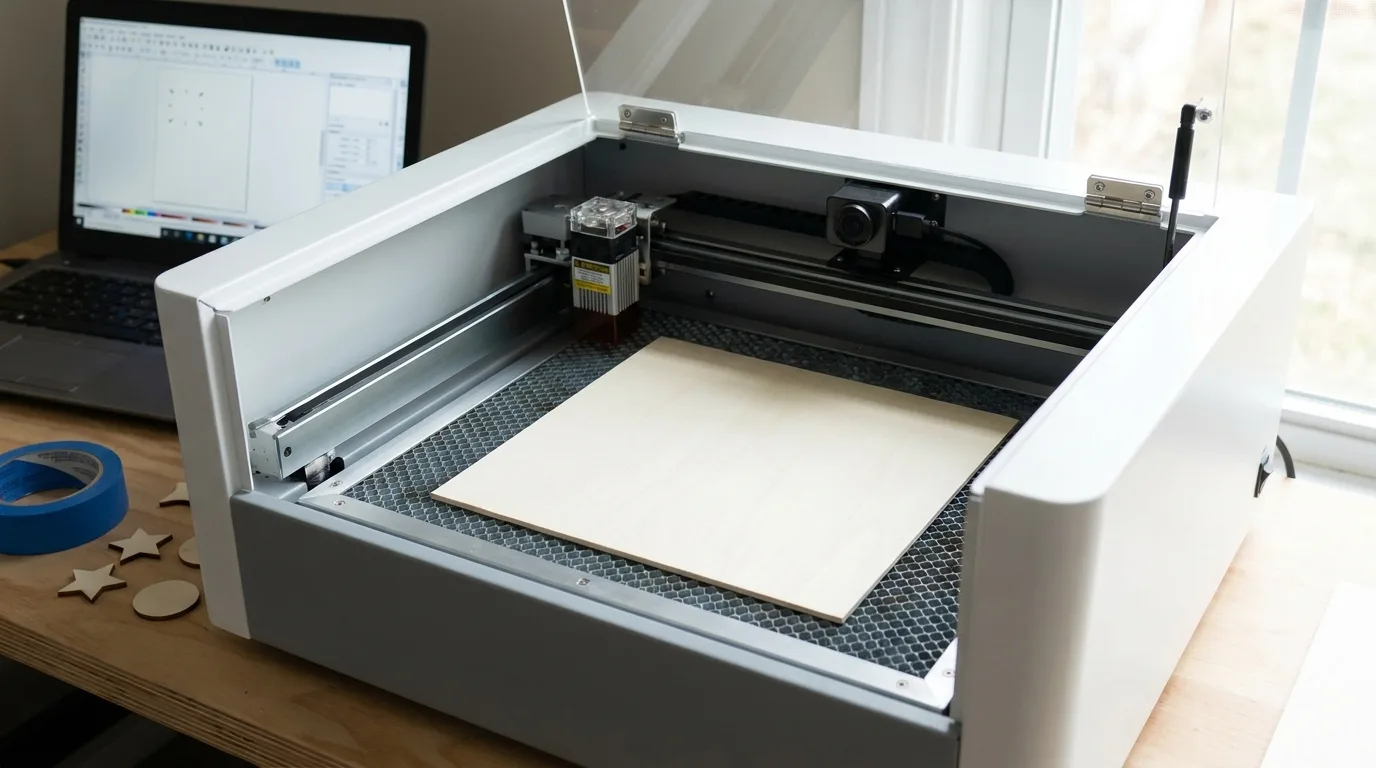
Basswood is the best all-round wood for the xTool M2 because its pale, even face gives this camera-guided enclosed desktop laser a clean surface for alignment and auto-focus. A 12 x 12 inch sheet also fits comfortably within the 426 x 320 mm working area, so the built-in camera makes placement pleasantly straightforward.
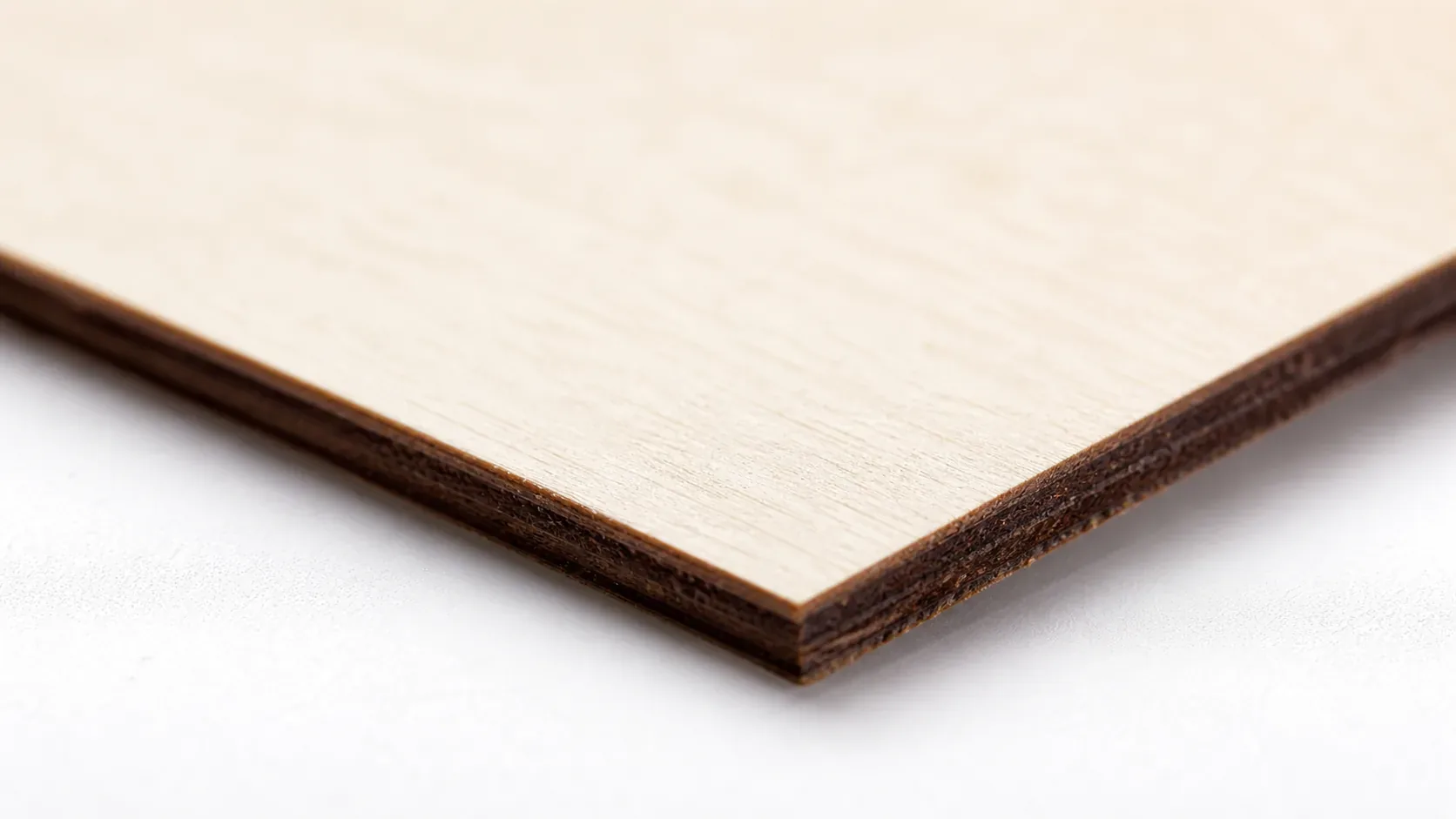
Its uniform grain helps both the 10W module and the 20W module produce repeatable results across a sheet instead of surprising you halfway through a batch. USDA Forest Products Laboratory data supports basswood’s reputation as a light, low-resin domestic hardwood – good news for cleaner optics and calmer cuts.
I scorched 1 scrap sheet after trusting the camera preview without checking that the board was sitting flat. The preview was fine; the lifted corner was not. Start with flat stock, then see our basswood laser cutting settings for a sensible next step before loading a full sheet.
Basswood also finishes without drama. Its smooth cream surface accepts engraving, paint, stain, and glue well, while its low-resin makeup leaves less sticky smoke residue inside the enclosure. For cleaner faces on detailed pieces, these tips to prevent charring when laser cutting are worth keeping nearby.
- Low resin – leaves less sticky smoke residue on the lens and reduces surprise flare-ups inside the xTool M2 enclosure.
- Consistent density – helps either the 10W module or the 20W module deliver more repeatable cuts across a full sheet.
- Minimal char – keeps the pale cream face cleaner than resin-heavy hobby plywood, especially around fine details.
- Light, workable surface – takes engraving, paint, stain, and glue without a fight after cutting.
- No toxic fumes – untreated natural wood is a safer choice than unknown glued or coated sheet goods in an enclosed machine.
What Are the Best xTool M2 Settings for 3mm Basswood?
No verified xTool M2-specific CSV recipe is available, so these are general diode-wattage starting points, not xTool M2 lab-tested settings. I ran 4 small 1×1 inch scrap squares before committing a full sheet, which beats turning good basswood into expensive smoke.
| Module | Cut Speed | Passes |
|---|---|---|
| 10W Module | 6-8 mm/s | 1-2 |
| 20W Module | 8-12 mm/s | 1-2 |
Note: Always run a 1×1 inch test cut first before committing a full sheet. The M2 air assist is built into the module design; confirm airflow is running. As thickness capability, not a 3mm speed recipe, xTool states up to 8mm basswood plywood in one pass for the 10W module and up to 10mm for the 20W module. Use the free Crafteker laser settings calculator if your test differs.
Crafteker’s 3mm basswood is void-free and laser-grade – 12×12 inch, fits well within the M2’s 426x320mm bed. $24.99 for 12 sheets ($2.08/sheet).
How Do I Get Clean Cuts on the xTool M2? Step-by-Step
Clean xTool M2 cuts come from correct focus, active air assist, and basswood held dead flat. Light brown edges are normal; jet-black, flaky edges mean something in the setup needs attention. Follow these six checks before blaming the wood.
- Use the built-in camera and auto-focus workflow. Place your design with the camera, then confirm the module is focused before cutting. A board that looks flat in preview can still sit proud at one corner, so check the actual sheet, not just the screen.
- Confirm built-in air assist is running. The M2’s air assist is part of the module design. Verify airflow before the first pass so smoke does not linger in the kerf, darken the edge, and interfere with a clean cut.
- Hold the 3mm basswood flat inside the bed. Keep the sheet flat within the 426x320mm work area, especially at the corners. A lifted corner steals focus distance and can leave one side attached while the rest of the design drops out cleanly.
- Cut a 1×1 inch test square first. Use the 6-8 mm/s range for the 10W module or 8-12 mm/s for the 20W module. Compare your result with these basswood laser cutting settings before starting a full job.
- Do not add extra passes to hide a failed cut. Check focus and module seating first, then repeat the test. Extra passes at the wrong focus make toasted-marshmallow edges, not better parts; ask me how I know.
- Clean the lens every 3-5 hours. Access the lens carefully and wipe it with IPA on a cotton swab. I found a hazy lens after about 4 hours of cutting, and the next test line barely marked the wood. A thin film can cost 10-20% of available power; see how to prevent charring when laser cutting.
Which xTool M2 Module Cuts Basswood Fastest?
The 20W module has the faster 3mm basswood starting range: 8-12 mm/s in 1-2 passes, versus 6-8 mm/s in 1-2 passes for the 10W module. That speed gap adds up quickly once you are filling the M2 bed with repeated shapes.
xTool lists up to 10mm basswood in one pass for the 20W module and up to 8mm for the 10W module; those are thickness-capability claims, not 3mm speed recipes. The 10W module remains a sound pick for lighter, slower jobs, but Etsy sellers and batch cutters will want the 20W module for shorter production time.
Why Isn’t My xTool M2 Cutting Through Basswood Cleanly?
Most incomplete cuts and excessive charring on the xTool M2 come down to focus, airflow, material consistency, or a dirty lens. Check these four items before adding passes; stacking passes over a setup problem is how edges turn into toasted marshmallows.
- Focus or camera alignment is off: Re-run the M2 auto-focus workflow, use the built-in camera to confirm placement, and check that the sheet lies flat with no lifted corner stealing focus distance.
- Air assist is not engaged: Confirm airflow before cutting, because smoke sitting in the kerf darkens edges and slows the cut. For more cleanup tactics, see how to prevent charring when laser cutting.
- Inconsistent material: Density can change across craft-store sheets, especially around hidden voids. Choose laser-grade basswood for more even cuts and fewer surprise hangers-on.
- Dirty lens: Clean the lens after every 3-5 hours of cutting. A thin film can reduce available power by 10-20%, turning a clean test cut into a barely-marked line.
I ruined 3 tiny test squares before finding that the module had not fully seated after a swap. Check the module seating before blaming the wood, then repeat a small scrap cut using your chosen range from these basswood laser cutting settings.
Where to Buy Basswood Sheets for the xTool M2
Crafteker 3mm, 12 x 12 inch laser-grade basswood fits inside the xTool M2’s 426 x 320mm bed and is void-free for more even cutting. The 12-pack costs $24.99, or $2.08 per sheet, making it the most cost-effective option for repeat cuts on the camera-guided workflow.
I switched from mixed craft-store packs after a hidden void caused a part to fail on a paid order. The cut looked fine until the piece fell out still attached. Pale, consistent sheets save you from re-tuning and re-cutting every batch.
Ready to cut? Get the wood that works with these settings:
→ Buy Crafteker 12-Pack Basswood Sheets on Amazon – $24.99
Clip the 7% coupon on the listing page – buy 2 packs and save 20% automatically.
Also available: 5-pack ($15.97) · 3-pack ($12.99)
Frequently Asked Questions
What are the best xTool M2 settings for 3mm basswood?
Use 6-8 mm/s and 1-2 passes as a general starting range for the 10W module, or 8-12 mm/s and 1-2 passes for the 20W module. These are wattage-class starting points, not M2 lab-tested presets, so cut a 1 x 1 inch scrap test first.
Is the xTool M2 good for cutting basswood?
Yes. Its enclosed desktop body, camera-based alignment, auto-focus workflow, and swappable 10W or 20W blue diode modules suit 3 mm basswood well.
What is the best wood for the xTool M2 laser?
Choose 3 mm laser-grade basswood with a pale, low-resin surface that reads cleanly for the alignment camera. Crafteker’s 12-pack costs $24.99, or $2.08 per 12 x 12 inch sheet.
Can the xTool M2 cut 3mm basswood in one pass?
Yes, both modules can cut 3 mm basswood in 1 pass after a successful scrap test: start at 6-8 mm/s on 10W or 8-12 mm/s on 20W. xTool lists up to 8 mm in 1 pass for 10W and up to 10 mm for 20W, so 3 mm has plenty of thickness headroom.
Where can I buy basswood sheets for the xTool M2?
Buy Crafteker basswood on Amazon in a 3-pack for $12.99, 5-pack for $15.97, or 12-pack for $24.99 ($2.08/sheet). The 12-pack is the best value, and you can clip the 7% coupon on the listing page.
About the author: Mike Dolan is a laser maker and wood materials specialist with 8+ years cutting basswood, birch, and MDF on diode and CO₂ machines. He tests every Crafteker basswood batch before listing.
My 20W M2 gave me clean 1-inch test squares after I started in the 8-12 mm/s range and checked the auto-focus first. I had one corner fail before that because the board was slightly lifted, so flat stock made a bigger difference than I expected.