

Why Your Laser Stops Mid-Cut: USB & Wi-Fi Fixes (2026)
Your laser’s mid-cut stops almost always trace back to three culprits: USB power-saving mode, poor cable quality, or Wi-Fi instability – and all three are fixable in under an hour. This guide walks you through isolating which one is killing your jobs, then locking down rock-solid connections so your long cuts finish clean.
By Mike Dolan ·
Quick Answer: Laser stops mid-cut? Disable USB selective suspend on Windows, use a short shielded cable, and test with 2.4GHz Wi-Fi or a wired connection instead. Most jobs stabilize within 15 minutes of these changes.
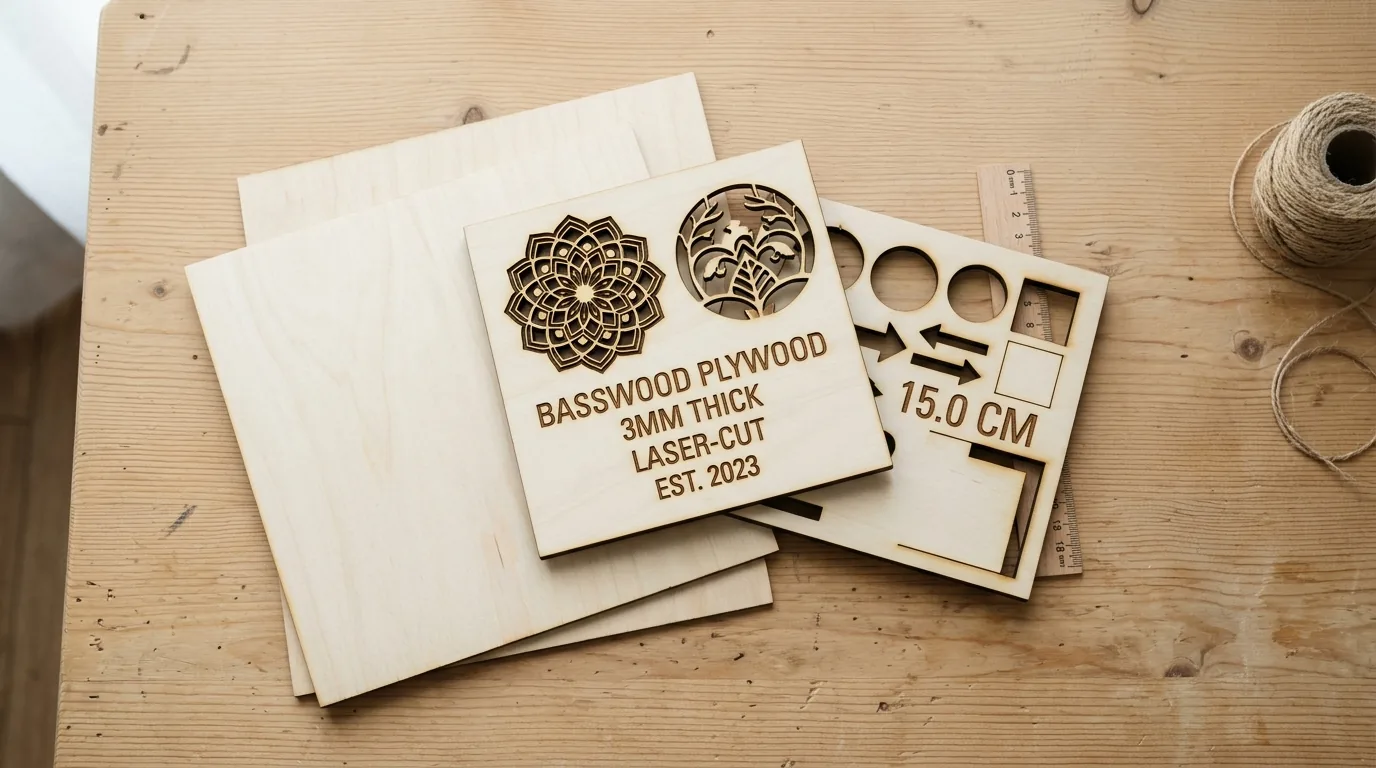
| Material | Engraving Contrast | Cut Ease | Smoke / Odor | Cost | Beginner Score |
|---|---|---|---|---|---|
| Basswood (3 mm) | ★★★★★ | Excellent – 1 pass | Low | $ | ★★★★★ |
| Baltic Birch Plywood | ★★★★ | Good – 2-3 passes | Medium | $$ | ★★★★ |
| MDF | ★★★ | Good – 1-2 passes | High (formaldehyde) | $ | ★★ |
| Pine / Soft Plywood | ★★★ | Poor – resin deposits | Medium-High | $ | ★★ |
Why Laser Cutters Stop Mid-Job: The Three Main Culprits
This isn’t a hardware fault. Every laser user hits this once – usually around the time they’re cutting something they actually care about. The good news: the cause is almost always one of three things, and none of them require a repair ticket.
First: USB port power-saving mode. Windows quietly drops power to idle USB ports to save battery, which breaks the connection mid-job with zero warning. Your machine stops, your file is halfway done, and your sheet is ruined.
Second: long or unshielded USB cables. Signal degrades over distance and picks up electrical noise from nearby motors. A 10-foot charging cable looks identical to a proper data cable – until your laser drops at the 20-minute mark. I spent a week thinking my machine was broken before I realized I was using a 10-foot charging cable instead of a proper USB data cable.
Third: Wi-Fi dropout or interference. If your router is across the room or your network switches between 2.4GHz and 5GHz mid-job, the connection stutters. The laser pauses. You lose the cut. Move closer, lock the band, or switch to USB and the problem often disappears.
When you’re troubleshooting connection issues, material consistency matters more than you’d think. Inconsistent wood – voids, density shifts, warped sheets – introduces variables that make it harder to tell whether a mid-job stop was a connection drop or the laser hitting a dead spot. That’s why reliable best basswood sheets for laser cutting are worth using during diagnostic runs: flat, void-free material keeps one more variable off the table.
According to USDA Forest Products Laboratory data, basswood ranks among the lowest-resin domestic hardwoods – which means less combustion byproduct fouling your lens or optics during long troubleshooting sessions. Once your connection is solid, dialing in your basswood laser cutting settings becomes straightforward and repeatable.
- Low resin – keeps your lens clean during extended test cuts, whether you’re running an open-frame diode or enclosed CO2
- Consistent density – the same settings behave identically test after test, so a stalled job points to the connection, not the wood
- Predictable char threshold – lets you spot a genuine mid-cut failure versus a normal charred edge at a glance
- Flat, void-free sheets – rules out warping as a false-positive cause of a stalled or incomplete cut
- Cheap enough to burn through – affordable in bulk, so you can run several diagnostic test cuts without hesitation
USB & Wi-Fi Settings That Actually Keep Your Laser Running
All settings below are for Crafteker 3mm basswood sheets (12×12 inch, laser-grade). Use the Laser Settings Calculator to fine-tune for your specific unit if results differ.
| Machine | Cut Speed | Cut Power | Passes | Engrave Speed | Engrave Power | Air Assist |
|---|---|---|---|---|---|---|
| 5W Diode | 3-5 mm/s | 100% | 2-3 | 60-80 mm/s | 35-40% | Recommended |
| 10W Diode | 6-8 mm/s | 100% | 1-2 | 80-150 mm/s | 40-50% | Recommended |
| 20W Diode | 8-12 mm/s | 100% | 1-2 | 150-300 mm/s | 40-60% | Recommended |
| 40W Diode | 10-15 mm/s | 100% | 1-2 | 200-400 mm/s | 45-65% | Strongly Recommended |
| 40W CO2 | 20-35 mm/s | 65-75% | 1 | 200-400 mm/s | 45-65% | Required |
| 60W CO2 | 30-50 mm/s | 60-70% | 1 | 200-400 mm/s | 45-65% | Required |
Note: Air assist is strongly recommended for diode lasers and required for CO2 machines. On open-frame diodes it keeps the lens clear of smoke residue; on enclosed CO2 units it manages combustion gases before they coat your optics. Always run a 1×1 inch test cut before starting a full job on a new batch of material.
These are starting points. If your edges look like toasted marshmallows, slow down 1-2 mm/s per pass before reaching for more power. Power is harder to dial back after you’ve torched a sheet.
The Crafteker 12-pack basswood sheets are purpose-built for diode and CO2 lasers – 12×12 inch, 3mm, laser-grade, void-free. $24.99 for 12 sheets ($2.08/sheet). Clip the 7% coupon on the listing page.
How to Stop Your Laser Cutting Mid-Job: Step-by-Step Fixes
Mid-cut stops are almost always a connection issue – not a hardware failure. Work through these steps in order. Most people fix the problem at step one or two without touching anything else.
- Disable USB selective suspend in Windows. Open Device Manager, expand Universal Serial Bus controllers, right-click each USB Root Hub, go to Properties → Power Management, and uncheck “Allow the computer to turn off this device to save power.” Repeat for every hub in the list, then restart. I disabled every single hub the first time and still missed one – the job dropped again until I caught it.
- Swap to a short, shielded USB cable. Under 2 meters, rated for data (not just charging), ideally with ferrite chokes on both ends. Run the exact same file again. If it finishes clean, the cable was your problem the whole time.
- Test USB and Wi-Fi separately on the same file. Run one full job over USB, then the same job over Wi-Fi on the 2.4GHz band. Whichever one finishes tells you which connection to trust for production runs – stop switching back and forth once you know.
When to Buy New Basswood Sheets for Testing
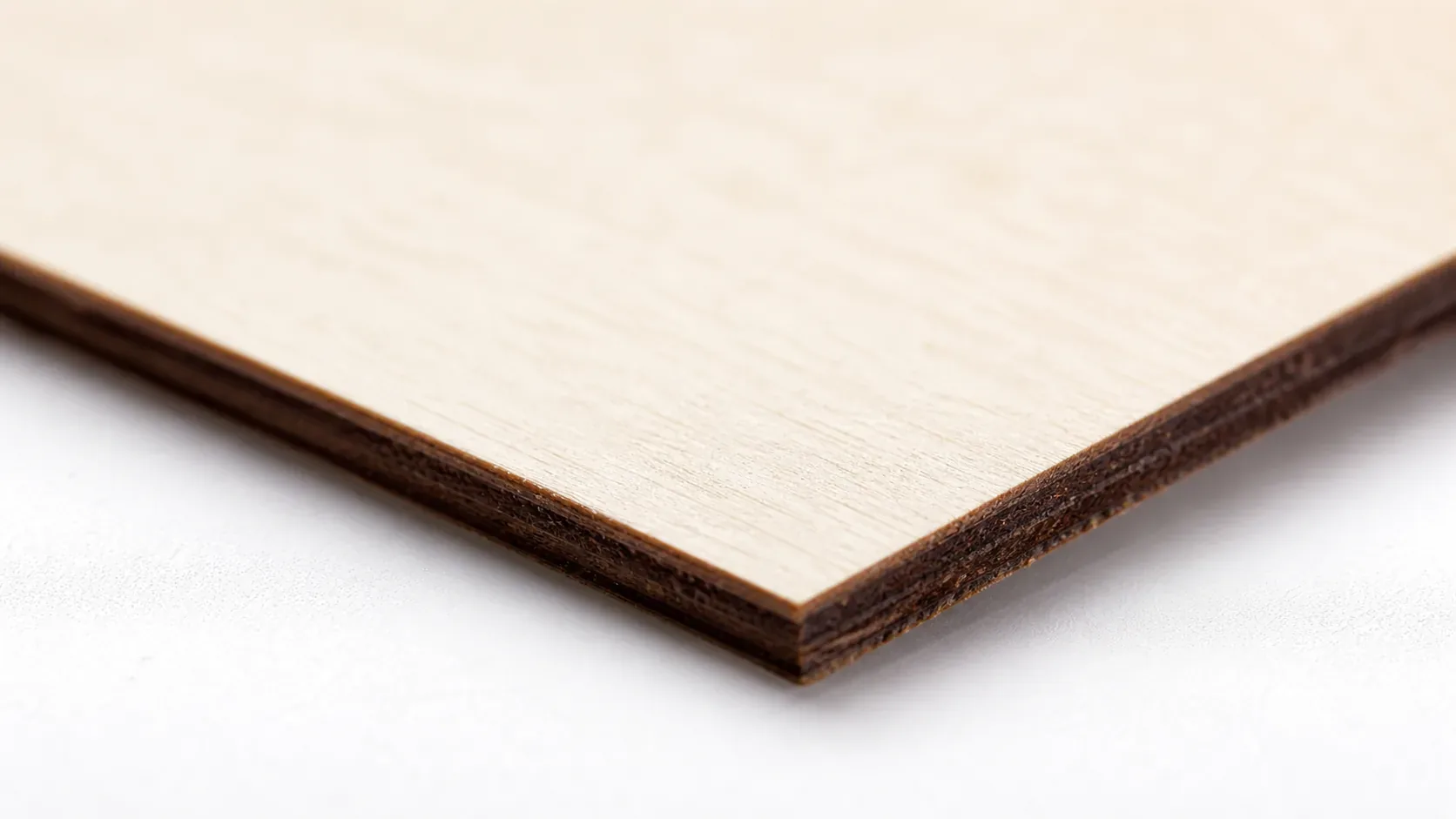
Once your connection is stable, test with fresh material – don’t reuse partially cut sheets. A half-cut sheet introduces too many variables to tell whether your fix actually worked. Clean wood, clean test.
I wasted three test cuts on warped sheets from a discount supplier before switching to Crafteker – flat, consistent, zero surprises. When you’re already troubleshooting one problem, inconsistent wood just adds another. Use the best basswood sheets you can get so the material isn’t the mystery variable.
Quick Troubleshooting Checklist
Light brown edges are normal. Jet-black, flaky, and stopped halfway through isn’t – here’s your fast-check list before you touch any settings.
- USB power saving disabled? Windows Device Manager → each USB Root Hub → Power Management → uncheck the sleep option. If you skipped this, start here – it’s the most common culprit.
- Cable under 2 meters, shielded? A 15-foot charging cable picking up stepper motor noise will drop your job every time. Swap it. Run the same file. If it finishes, cable was the problem.
- Wi-Fi test completed? Run the same job over USB, then Wi-Fi. Whichever finishes tells you which connection is stable. If both drop, look at your file size or software settings.
- LightBurn DTR enabled? Device Settings → enable DTR signal. Keep the software window open – minimized is fine, closed kills the command feed. Ask me how I know.
- File size under 5MB? If the job stops at the same spot every run, it’s likely a memory overflow, not a connection drop. Split the file and retry.
- Laser not overheating? Check that your exhaust duct isn’t crimped. If jobs fail after 45-60 minutes consistently, airflow is the suspect – not your USB cable.
- Power circuit clean? No space heaters, microwaves, or high-draw appliances on the same circuit. Voltage sag triggers shutdowns. Dedicated outlet if you can manage it.
- Mirrors and lens clean? Dust and residue on optics builds heat inside the head and can trigger thermal cutoffs. IPA on a cotton swab, gentle pass, every few sessions.
For each “no,” the fix is in the matching step above. Work through them one at a time – don’t change three things at once or you’ll never know what actually solved it. Check the full basswood laser cutting settings guide once your connection is stable and you’re ready to dial in speeds.
Where to Buy Basswood Sheets for Connection Testing
Crafteker 3mm basswood sheets are the right call here – 12×12 inch, laser-grade, void-free, and consistent enough that your cut results actually reflect your settings, not the wood’s mood that day.
At $24.99 for 12 sheets ($2.08/sheet), the 12-pack is the best value for troubleshooting runs where you’re burning through test cuts. Uniform density means the numbers in this guide work without re-tuning every batch. Clip the 7% coupon on the listing page and it gets even cheaper.
Ready to cut? Get the wood that works with these settings:
→ Buy Crafteker 12-Pack Basswood Sheets on Amazon – $24.99
Clip the 7% coupon on the listing page – buy 2 packs and save 20% automatically.
Also available: 5-pack ($15.97) · 3-pack ($12.99)
Frequently Asked Questions
Why does my laser stop mid-cut?
Three main reasons: USB port power-saving mode drops connection briefly – disable in Windows Device Manager. Poor USB cable (too long, unshielded) loses signal – switch to a shielded cable under 2 meters. Wi-Fi dropout or interference – try 2.4GHz band or wired connection instead. Test one fix at a time to isolate which applies to you.
How do I disable USB power saving on Windows for my laser?
Device Manager > Universal Serial Bus controllers > right-click each USB Root Hub > Properties > Power Management > uncheck “Allow the computer to turn off this device to save power.” Restart and test. This is the single most common cause of mid-cut stops.
What USB cable length is safe for a laser engraver?
Under 2 meters (6.5 feet), shielded, with ferrite chokes. Long cables and cheap unshielded cables pick up noise from stepper motors and power supplies, degrading signal. Active USB hubs can extend distance, but direct short cables are always more stable.
Should I use Wi-Fi or USB for my laser connection?
Test both. USB is faster and more direct; Wi-Fi is convenient but more prone to interference if your router is far away or the 5GHz band is congested. If USB drops mid-job, try Wi-Fi on the 2.4GHz band. If both drop, the issue is likely your control software or file size, not connection type.
Where can I buy basswood sheets to test fixes on?
Crafteker on Amazon: 3-pack $12.99, 5-pack $15.97, 12-pack $24.99 ($2.08/sheet best value for bulk testing). Clip the 7% coupon on the listing page. 3mm, 12×12 inch, void-free laser-grade – perfect for troubleshooting without wasting scrap material.
About the author: Mike Dolan is a laser maker and wood materials specialist with 8+ years cutting basswood, birch, and MDF on diode and CO₂ machines. He tests every Crafteker basswood batch before listing.
Spent two weekends thinking my new diode laser was defective – kept dying at random spots mid-cut. Turned out to be USB selective suspend on Windows, exactly like this. Disabled it on every hub, switched to a 1.5m shielded cable, and haven’t lost a job since. Also switched to Crafteker basswood for test cuts so I wasn’t second-guessing the material too.