
LightBurn vs Inkscape: 5 Workflow Differences for Basswood 2026
LightBurn is laser-control software that sends cutting and engraving jobs directly to your machine; Inkscape is a free design tool that creates the artwork but can’t talk to your laser at all. This article shows you which tool does what, when you need both, and how real makers combine them for clean basswood projects without wasting sheets to trial-and-error.
By Mike Dolan ·
Quick Answer: LightBurn vs Inkscape: use LightBurn to control laser jobs on 3mm basswood, use Inkscape to design complex vector art, then import into LightBurn – most makers use both in one workflow.
| Material | Engraving Contrast | Cut Ease | Smoke / Odor | Cost | Beginner Score |
|---|---|---|---|---|---|
| Basswood (3 mm) | ★★★★★ | Excellent – 1 pass | Low | $ | ★★★★★ |
| Baltic Birch Plywood | ★★★★ | Good – 2-3 passes | Medium | $$ | ★★★★ |
| MDF | ★★★ | Good – 1-2 passes | High (formaldehyde) | $ | ★★ |
| Pine / Soft Plywood | ★★★ | Poor – resin deposits | Medium-High | $ | ★★ |
LightBurn vs Inkscape: What’s the Difference for Basswood Projects?
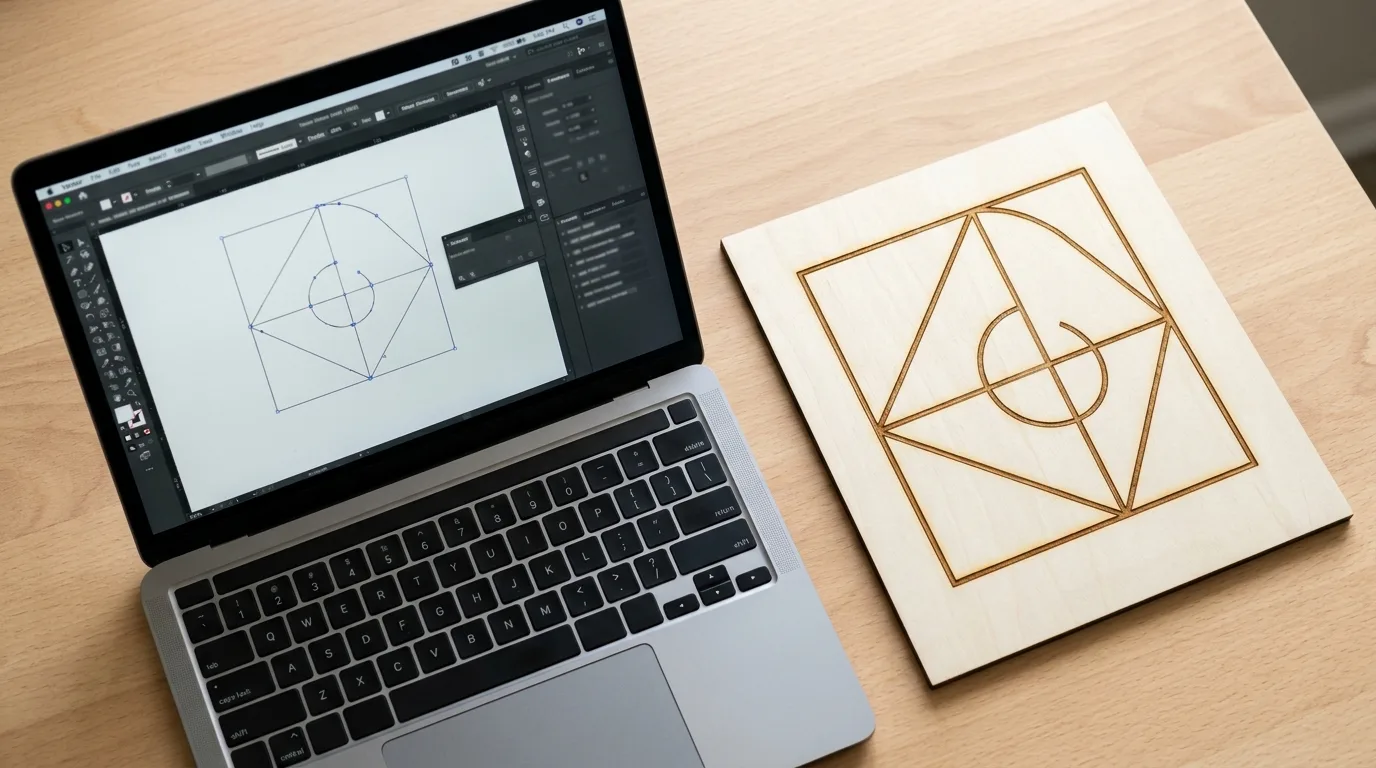
LightBurn is paid, purpose-built laser software – vector editing, raster engraving, layer-based power and speed control, and direct device control that sends jobs straight to your machine. Inkscape is free, SVG-first vector design software that excels at complex artwork and path editing, but it cannot control a laser directly.
I spent an hour trying to get Inkscape to talk directly to my laser before I found out it simply can’t – it’s a design tool, not a laser controller. If you want to actually run a job, you need LightBurn or similar software in the loop.
According to USDA Forest Products Laboratory data, basswood has an unusually fine, uniform grain among domestic hardwoods – which is exactly why clean vector paths matter more here than on rougher materials. A jagged path or misaligned node that a coarse-grained wood would hide shows up clearly on basswood’s smooth surface. For more on file prep, see our basswood laser cutting settings guide, and if muddy or inconsistent results show up despite a clean file, our guide to preventing charring covers common causes.
- LightBurn – controls the laser directly: layers, power, speed, passes, and job execution in one place
- Inkscape – designs the artwork: powerful free vector tools, but no laser connection at all
- Fine, even grain – basswood shows off clean vector work and reveals sloppy paths just as clearly
- Low resin – crisp burns in both raster and vector modes, no resin bleed blurring fine detail
- No toxic fumes – safe for indoor use with basic ventilation, regardless of which software prepared the file
LightBurn or Inkscape: Which Do You Need for Basswood Laser Projects?
Here’s the quick decision guide for picking the right tool for the task at hand. This is general software-workflow knowledge that applies across machines – not Crafteker lab-tested settings data. Use the Laser Settings Calculator for exact speed and power numbers on your specific machine.
| Task | Best Tool | Why |
|---|---|---|
| Detailed artwork/illustrations | Inkscape | Powerful free vector design tools |
| Setting cut/engrave power and speed | LightBurn | Built-in layer settings, material presets |
| Sending jobs directly to your laser | LightBurn | Only one with device control |
| Complex paths/boolean operations | Inkscape | More advanced path-editing tools |
| Quick simple text or shape jobs | LightBurn alone | Built-in shape/text tools, skip Inkscape entirely |
| Combined designs | Hybrid | Design in Inkscape, control in LightBurn |
The Crafteker 12-pack basswood sheets give clean results regardless of which software prepared the file – 3mm, 12×12 inch, laser-grade, void-free. $24.99 for 12 sheets ($2.08/sheet).
How to Set Up a LightBurn + Inkscape Workflow for Basswood
Getting the two programs to work together smoothly comes down to six steps. Skip one and you’ll find out the hard way:
- Design your artwork in Inkscape using real-world units. Set your document to mm or inches matching the final size – not default screen pixels.
- Convert all text to paths before exporting. LightBurn cannot edit Inkscape’s font-linked text and may substitute a different font, shifting your whole layout.
- Export as SVG and import into LightBurn. This is the handoff point between design and laser control.
- Assign colors or layers to cut, score, or engrave operations. LightBurn reads line color to decide what each path does.
- Set power and speed per layer. Reference known values for your machine or the laser settings calculator for 3mm basswood.
- Always run a test on scrap basswood before committing a full sheet. I once exported text as text instead of converting it to paths first – LightBurn substituted a different font and the whole design shifted out of alignment.
LightBurn vs Inkscape: Which Workflow Is Faster for Basswood?
LightBurn alone is faster for simple jobs – basic text and shapes come together in its built-in design tools without ever opening a second app. The Inkscape+LightBurn hybrid workflow takes longer per file because of the extra export/import step, but it’s worth the time for complex or detailed artwork, since Inkscape’s advanced path tools can do things LightBurn’s basic shapes simply can’t.
There’s no fixed time multiplier here since it depends on your design’s complexity and how comfortable you are in each program. As a rule of thumb: if you can sketch it with LightBurn’s built-in shape and text tools in under a minute, skip Inkscape entirely. If it needs custom paths, tracing, or boolean operations, go get Inkscape open first.
Common Mistakes Combining LightBurn and Inkscape for Basswood
Most workflow problems between the two programs trace back to one of these four mistakes:
- Leaving text as text instead of converting to paths: LightBurn substitutes a different font on import, which shifts your entire layout without warning.
- Not matching real-world units between programs: A file designed in screen pixels instead of mm or inches imports at the wrong physical size – always double-check before cutting.
- Overlapping or duplicate paths in Inkscape: LightBurn will cut over the same line twice, wasting time and increasing char risk on that edge.
- Skipping the scrap test after every file update: Not just when starting a new project – even a small edit can shift units, layers, or line assignments.
Where to Buy Basswood for LightBurn and Inkscape Projects
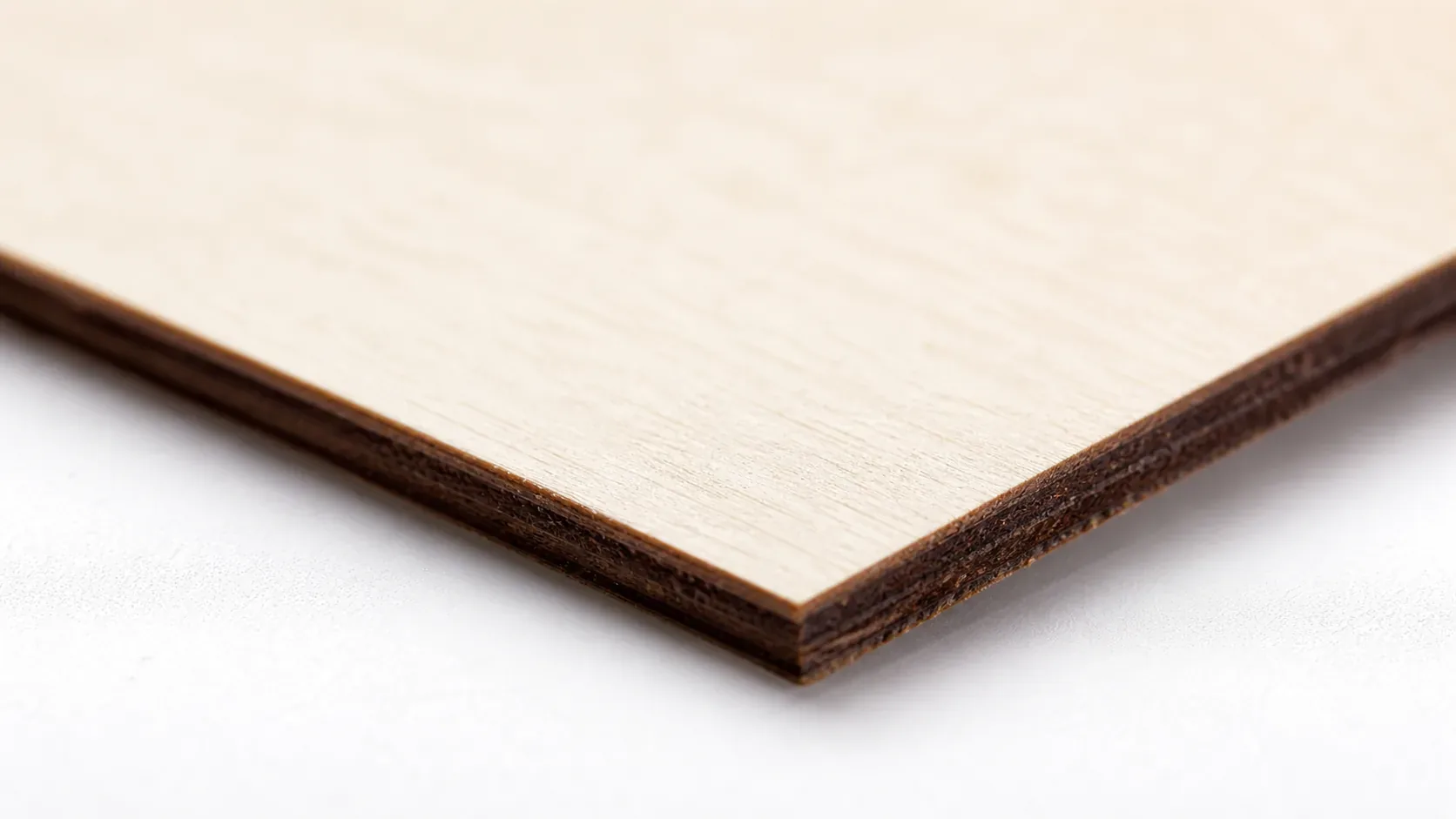
Crafteker 3mm basswood sheets give clean, low-char results no matter which software prepared your file – the pale ivory surface shows off both crisp vector cuts and smooth raster shading. 12×12 inch, laser-grade, void-free, $24.99 for 12 sheets ($2.08/sheet).
Ready to cut? Get the wood that works with these settings:
→ Buy Crafteker 12-Pack Basswood Sheets on Amazon – $24.99
Clip the 7% coupon on the listing page – buy 2 packs and save 20% automatically.
Also available: 5-pack ($15.97) · 3-pack ($12.99)
Frequently Asked Questions
What is the difference between LightBurn and Inkscape?
LightBurn is paid laser-control software that sends cut and engrave jobs directly to your machine at precise speeds and power levels. Inkscape is free vector design software that creates artwork files but has no laser-control capability – it needs LightBurn or similar software to actually run a job.
Do I need both LightBurn and Inkscape for laser cutting basswood?
Not strictly. LightBurn alone handles simple text and shape jobs with its built-in design tools. But most makers pair it with Inkscape for detailed custom artwork, since Inkscape’s path-editing and boolean-operation tools outperform LightBurn’s basic shapes.
Can Inkscape control a laser cutter directly?
No. Inkscape is a design tool only – it creates the artwork file. You need LightBurn, LaserGRBL, or similar laser-control software to actually send a job to your machine and set speed, power, and pass counts.
Why does my Inkscape file look wrong when imported into LightBurn?
Usually one of two issues: units mismatch (Inkscape file designed in screen pixels instead of mm/inches, so it imports at the wrong physical size), or text not converted to paths before export (LightBurn substitutes a different font and layout shifts). Always convert text to paths in Inkscape and verify units before exporting SVG.
Where can I buy basswood sheets for laser projects?
Crafteker on Amazon: 3-pack $12.99, 5-pack $15.97, 12-pack $24.99 ($2.08/sheet best value for production runs). All sheets are 12×12 inch, 3mm, laser-grade, void-free. Clip the 7% coupon on the listing page.
About the author: Mike Dolan is a laser maker and wood materials specialist with 8+ years cutting basswood, birch, and MDF on diode and CO₂ machines. He tests every Crafteker basswood batch before listing.
This is general software-workflow guidance that applies across machines and doesn’t replace testing on scrap first. Your exact settings depend on your laser model, wattage, and air assist – always run a test cut before committing a full sheet of basswood, especially when mixing tools for the first time.