
SVG/DXF File Prep for Basswood Laser Cutting: 6 Steps 2026
Laser cutters follow 2D vector paths, so your SVG or DXF file must be clean vectors, not raster images, with real-world units set correctly before you hit cut. This guide walks you through six steps to prepare files that actually cut clean on 3mm basswood – with the specific mistakes I’ve made so you don’t have to.
By Mike Dolan ·
Quick Answer: Prepare SVG and DXF files for laser cutting basswood in 6 steps: set units to mm, draw at 1:1 scale, convert text to paths, assign cut/engrave colors, check for closed paths, test on scrap.
| Material | Engraving Contrast | Cut Ease | Smoke / Odor | Cost | Beginner Score |
|---|---|---|---|---|---|
| Basswood (3 mm) | ★★★★★ | Excellent – 1 pass | Low | $ | ★★★★★ |
| Baltic Birch Plywood | ★★★★ | Good – 2-3 passes | Medium | $$ | ★★★★ |
| MDF | ★★★ | Good – 1-2 passes | High (formaldehyde) | $ | ★★ |
| Pine / Soft Plywood | ★★★ | Poor – resin deposits | Medium-High | $ | ★★ |
How to Prepare SVG and DXF Files for Laser Cutting Basswood
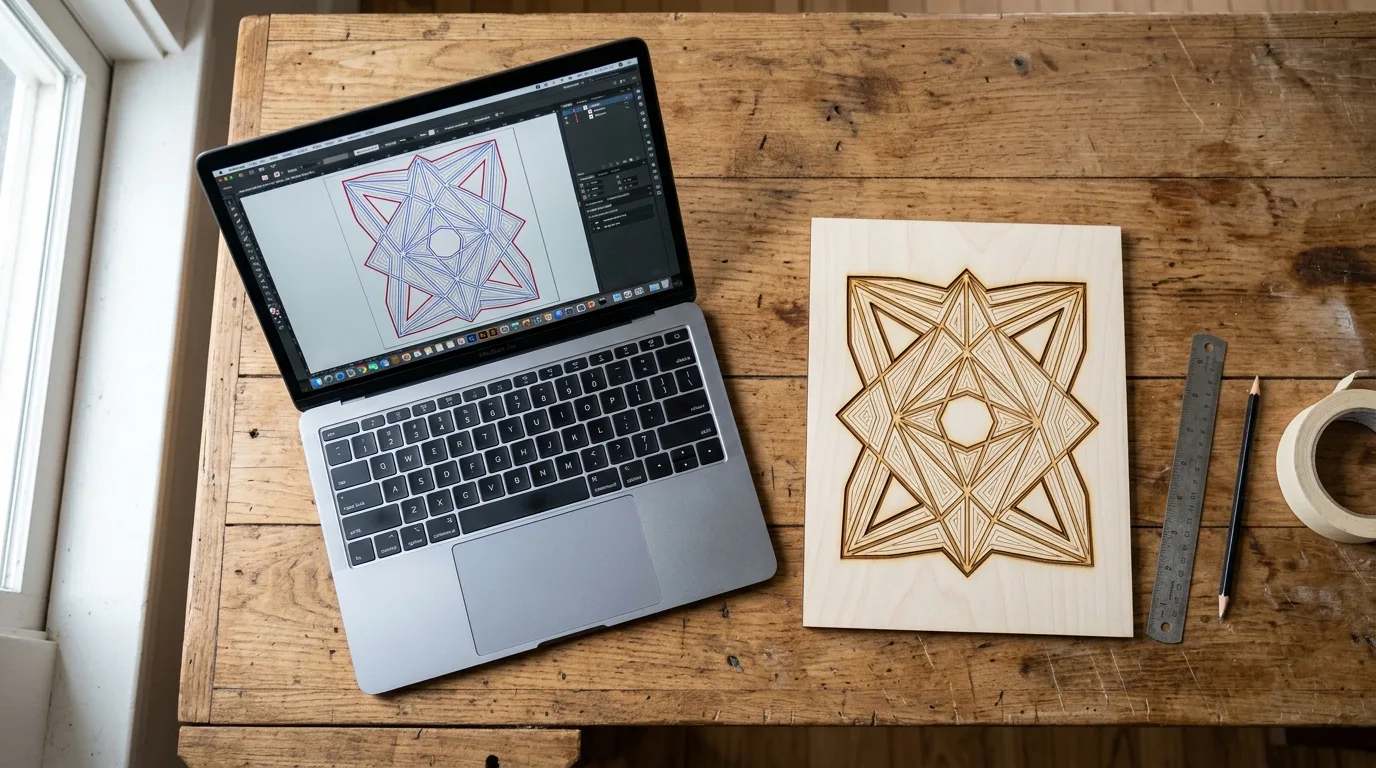
Laser cutters trace 2D vector paths, so your file needs to be clean vector data, not a raster image. SVG is the web-native vector format and defaults to pixel units unless you change it. DXF is the CAD-native format and builds real-world units in from the start, which is why engineers reach for it on parts with exact dimensions.
I sent a DXF with font-linked text once instead of converting it to paths first – the laser software substituted a different font and cut gibberish into a good sheet. Converting text to paths before export takes ten seconds and saves the whole job.
According to USDA Forest Products Laboratory data on basswood grain structure, basswood has an unusually fine, uniform grain among domestic hardwoods – exactly why clean file prep matters more here than on rougher materials. A ragged path or misplaced node that a coarse-grained wood would hide shows up clearly on basswood’s smooth surface. For more on dialing in results once your file is ready, see our basswood laser cutting settings guide, and if edges still look rough despite a clean file, our guide to preventing charring covers common causes.
- SVG – web-native vector format, defaults to pixel units, widely supported by hobby laser software
- DXF – CAD-native format, real-world units built in, the standard for exact-dimension parts
- Fine, even grain – basswood shows off clean file prep and reveals sloppy paths just as clearly
- Low resin – crisp cut and engrave lines once your file is set up correctly, no resin bleed blurring fine detail
- No toxic fumes – safe for indoor use with basic ventilation, regardless of which format prepared the job
SVG vs DXF: Which Should You Use for Basswood Laser Cutting?
Here’s the quick decision guide for picking the right format. This is general file-format knowledge, not Crafteker lab-tested settings data – once your file is ready, use the Laser Settings Calculator for actual cut speed and power on your machine.
| Need | Best Format | Why |
|---|---|---|
| Simple shapes/artwork | SVG | Native web vector, widely supported |
| CAD-precision parts | DXF | CAD-native, built-in real-world units |
| Cross-software compatibility | Either | Both widely supported by LightBurn and similar |
| Complex organic shapes | SVG | Easier path editing in Inkscape |
| Precise mechanical joints/tabs | DXF | More reliable exact-dimension handling |
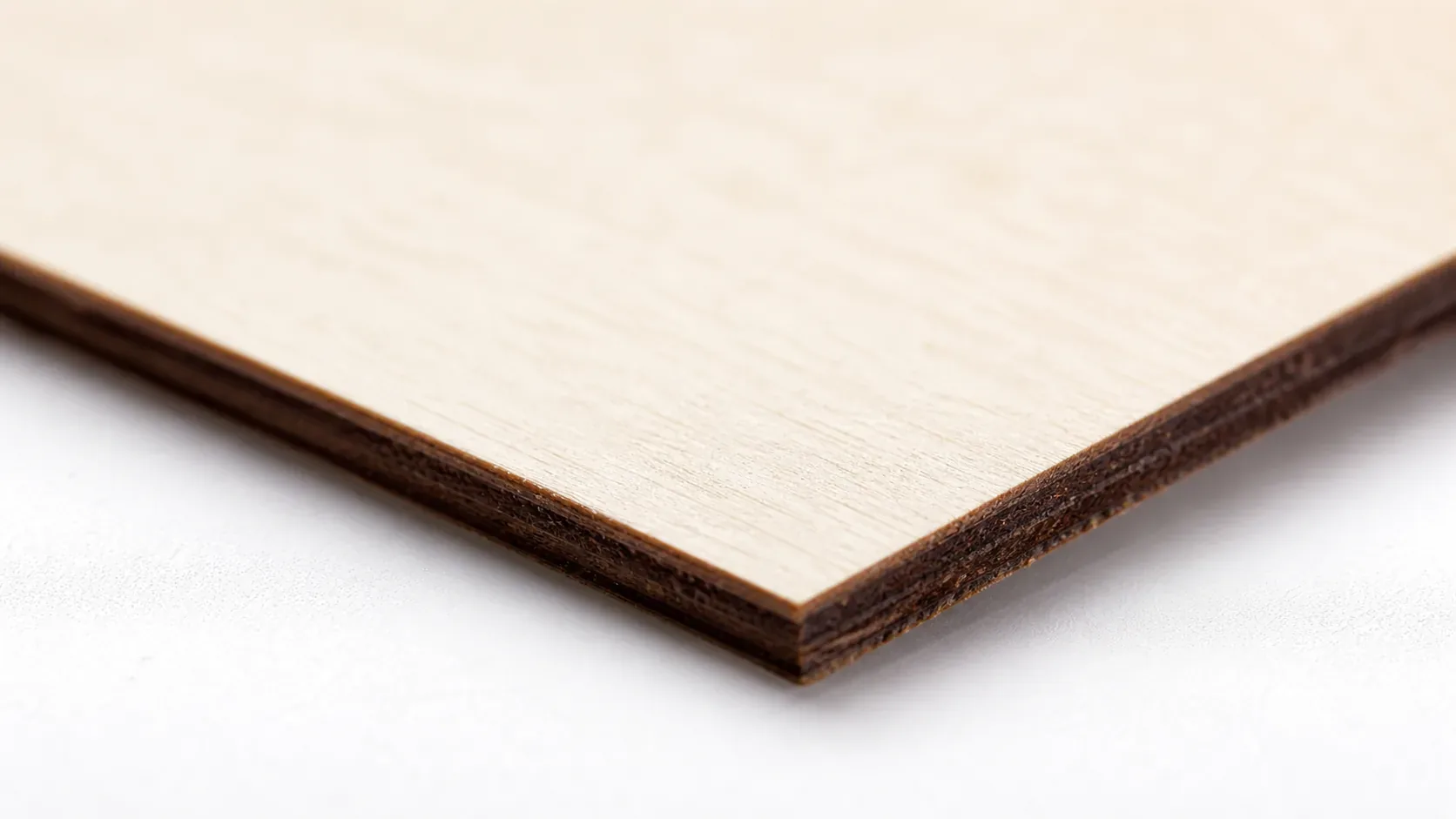
The Crafteker 12-pack basswood sheets give clean results regardless of which format prepared the file – 3mm, 12×12 inch, laser-grade, void-free. $24.99 for 12 sheets ($2.08/sheet).
How to Set Up Your File for Laser Cutting: Step-by-Step
Getting your file right the first time saves a wasted sheet. Follow these six steps every time:
- Set document units to millimeters or inches. Match your laser software’s units, not your design program’s default pixel setting.
- Draw and scale everything at 1:1 real-world size. Verify the size in a DXF viewer or your laser software before cutting – don’t trust the design canvas alone.
- Convert all text to outlines or paths. DXF does not reliably support fonts, and laser software may drop live text entirely.
- Assign distinct colors or layers to cut, score, and engrave lines. Use a hairline or very thin stroke for cut lines specifically.
- Check for closed paths and remove duplicates. An open path or an overlapping duplicate line causes an incomplete cut or a double-burned edge.
- Always run a test cut on scrap basswood first. I once left a path open by a fraction of a millimeter – the laser traced the whole shape but the piece never actually separated from the sheet, and I only found out after the job finished.
SVG vs DXF: Which Imports Cleaner Into Laser Software?
SVG is generally more universally supported by hobby laser software like LightBurn straight out of the box – it’s a simpler format with fewer version quirks to trip over. DXF is the CAD standard and handles exact dimensions well, but different CAD programs export slightly different DXF versions, and older files can occasionally import oddly into newer software.
If you’re moving between multiple laser programs or sharing files with other makers, SVG tends to cause fewer headaches. If your design comes from CAD software built around exact real-world dimensions, DXF is usually the more natural fit – just double-check the import in your laser software before cutting either way.
Common Mistakes Preparing Files for Laser Cutting Basswood
Most file-prep problems trace back to one of these four mistakes:
- Leaving units as pixels: Causes wrong-sized cuts that don’t match your intended dimensions. Always set real-world mm or inches before you start drawing.
- Leaving text as text instead of converting to paths: Causes font substitution or dropped text entirely once the file hits your laser software.
- Open paths or duplicate/overlapping lines: Causes incomplete cuts or double-burned edges – both waste time and material.
- Skipping the scrap test: Not verifying scale and kerf before committing a full sheet is the fastest way to turn a good file into a wasted one.
Where to Buy Basswood for Your Laser Cut Files
Crafteker 3mm basswood sheets make file-prep mistakes visible fast – which is a feature, not a bug, while you’re learning – and give clean, low-char results once your file is set up right. 12×12 inch, laser-grade, void-free, $24.99 for 12 sheets ($2.08/sheet).
Ready to cut? Get the wood that works with these settings:
→ Buy Crafteker 12-Pack Basswood Sheets on Amazon – $24.99
Clip the 7% coupon on the listing page – buy 2 packs and save 20% automatically.
Also available: 5-pack ($15.97) · 3-pack ($12.99)
Frequently Asked Questions
What file format is best for laser cutting – SVG or DXF?
Both work well. SVG is more universally supported by hobby laser software like LightBurn straight out of the box. DXF is the CAD standard and more reliable for exact-dimension mechanical parts with precise joints.
Why do I need to convert text to paths before laser cutting?
DXF does not reliably support fonts, and laser software may substitute a different font or drop the text entirely if it stays as live text. Always convert text to outlines or paths before export.
What units should I use for laser cutting files?
Millimeters or inches matching your real-world design size – never the default pixel units most design software starts with. Pixels to millimeters conversion is a common source of cuts that don’t fit.
Why did my laser only engrave instead of cut through my design?
Usually a stroke or color mapping issue – the line wasn’t assigned to the cut layer or operation – or the path wasn’t fully closed. Check that all cut lines are assigned to the correct color or layer in your laser software.
Where can I buy basswood sheets for laser cutting?
Crafteker on Amazon: 3-pack $12.99, 5-pack $15.97, 12-pack $24.99 ($2.08/sheet best value for production runs). All sheets 3mm, 12×12 inch, laser-grade, void-free. Clip the 7% coupon on the listing page for extra savings.
About the author: Mike Dolan is a laser maker and wood materials specialist with 8+ years cutting basswood, birch, and MDF on diode and CO₂ machines. He tests every Crafteker basswood batch before listing.
This is general file-prep guidance that applies across machines and software – not settings specific to one Crafteker-tested machine. We always recommend testing your file on a scrap piece of basswood first to catch unit or path issues before committing a full sheet. Clean file setup pays off fast on basswood’s fine grain.