
xTool M1 Ultra 40W Basswood Settings 3mm: Cut & Engrave 2026
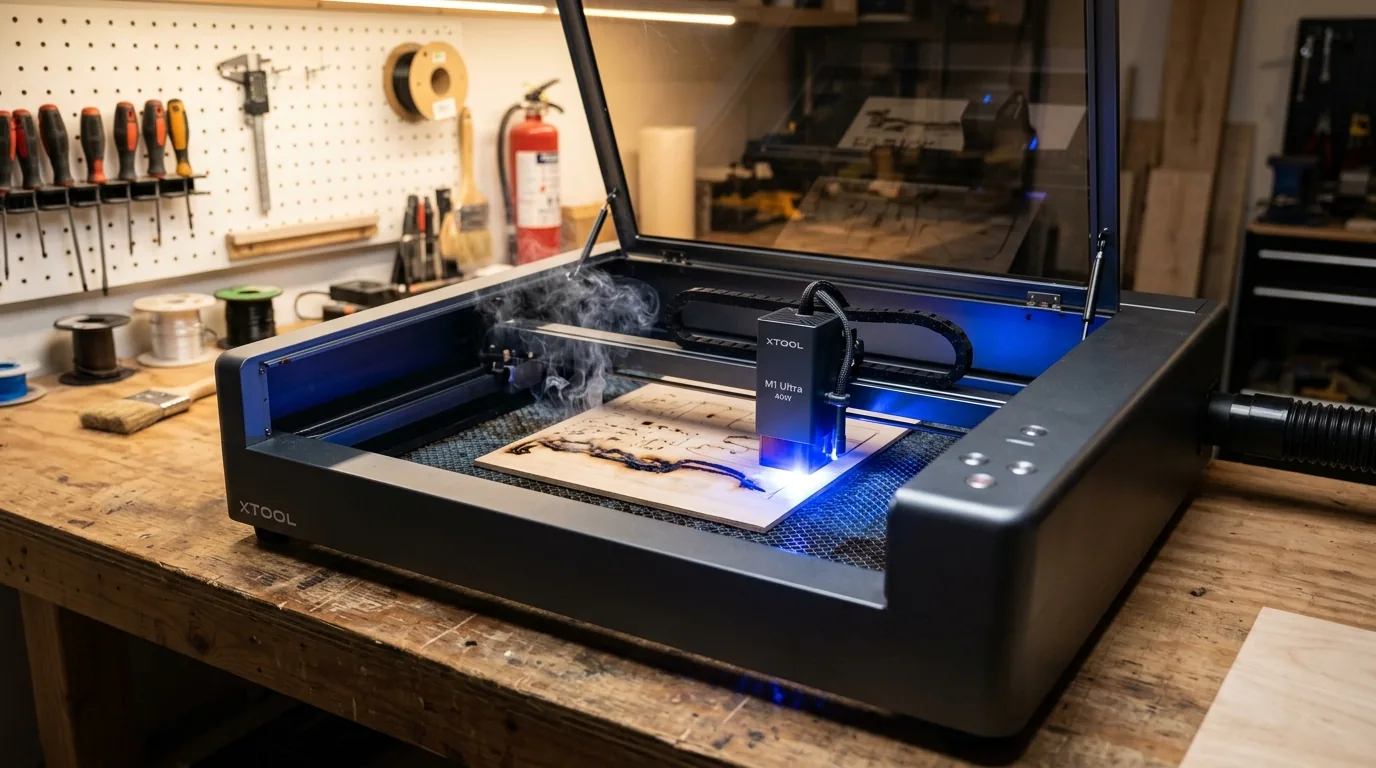
The xTool M1 Ultra 40W cuts 3mm basswood at 10 mm/s with 90% power in a single pass, producing clean edges with minimal char when air assist is set to 20 PSI. This guide covers exact cut and engrave settings, step-by-step setup, and troubleshooting to help you get professional results every time.
By Mike Dolan ·
| Material | Engraving Contrast | Cut Ease | Smoke / Odor | Cost | Beginner Score |
|---|---|---|---|---|---|
| Basswood (3 mm) | ★★★★★ | Excellent – 1 pass | Low | $ | ★★★★★ |
| Baltic Birch Plywood | ★★★★ | Good – 2-3 passes | Medium | $$ | ★★★★ |
| MDF | ★★★ | Good – 1-2 passes | High (formaldehyde) | $ | ★★ |
| Pine / Soft Plywood | ★★★ | Poor – resin deposits | Medium-High | $ | ★★ |
Why Is Basswood the Best Wood for the xTool M1 Ultra?
The xTool M1 Ultra’s 40W diode laser (455nm wavelength) pairs exceptionally well with basswood because the wood’s low resin content prevents smoke buildup inside the enclosed chamber and protects the optical path from residue. According to USDA Forest Products Laboratory data, basswood ranks among the lowest-resin domestic hardwoods, making it ideal for diode systems that rely on clean beam delivery. When you follow best practices for preventing charring when laser cutting, basswood delivers professional results batch after batch.
- Low resin – keeps the laser’s optical path clean and reduces smoke accumulation in the enclosed M1 Ultra chamber, extending lens life
- Consistent density – the same settings work batch after batch without retuning
- Minimal char – produces clean cut edges with air assist enabled
- Light, workable surface – easy to sand, paint, or stain after cutting
- No toxic fumes – unlike MDF or treated plywood, safe for indoor use with basic ventilation
What Are the Best xTool M1 Ultra Settings for 3mm Basswood?
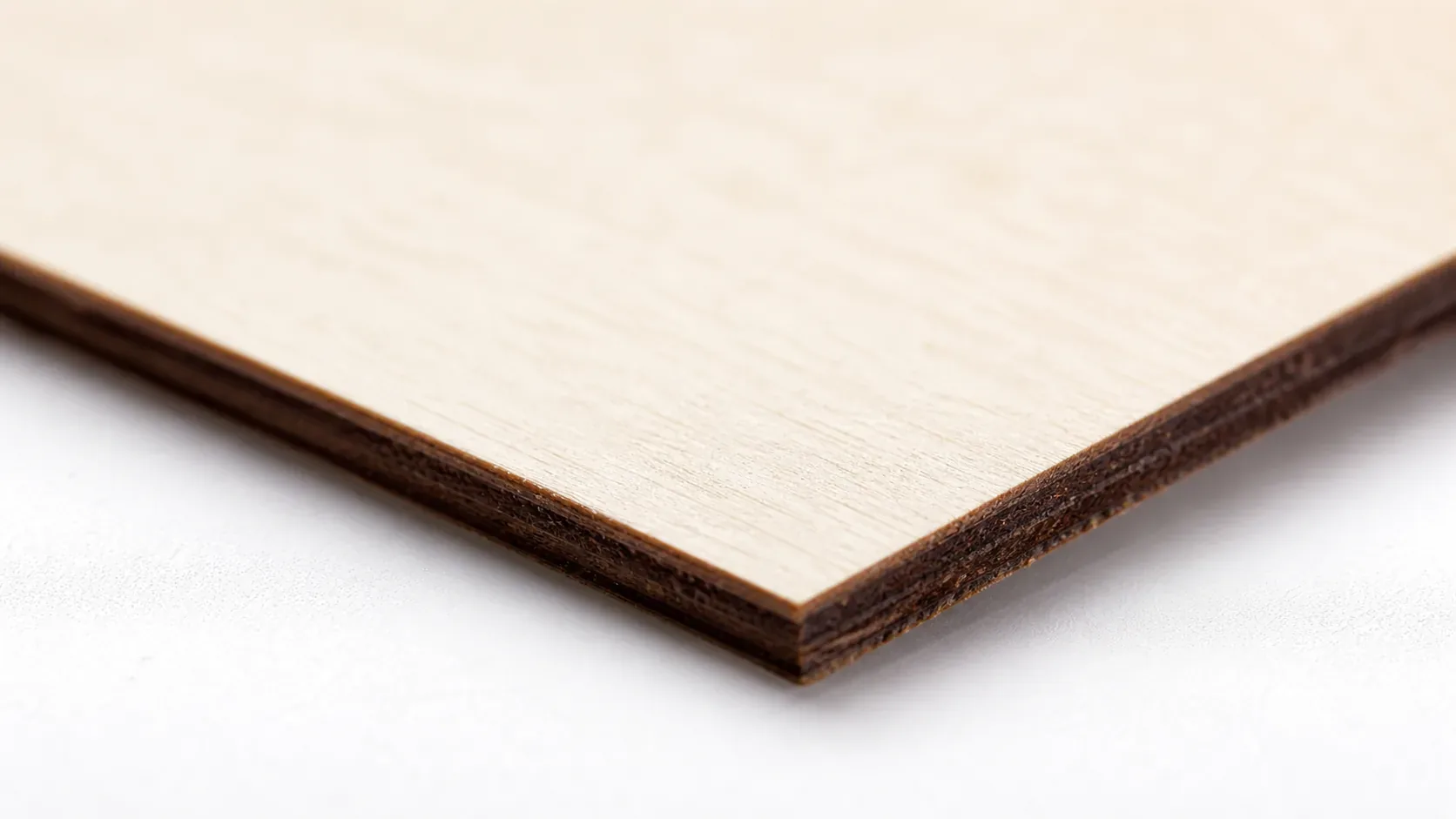
All settings below are for Crafteker 3mm basswood sheets (12×12 inch, laser-grade). Use the Laser Settings Calculator to fine-tune for your specific unit if results differ.
| Machine | Cut Speed | Cut Power | Passes | Engrave Speed | Engrave Power | Air Assist |
|---|---|---|---|---|---|---|
| xTool M1 Ultra 40W | 10 mm/s | 90% | 1 pass | 400 mm/s | 60% | 20 PSI |
Note: Air assist is strongly recommended for the xTool M1 Ultra. The M1 Ultra’s semi-enclosed design benefits significantly from 20 PSI air assist, which clears smoke from the cut zone, protects the diode lens from resin buildup, and keeps char to a minimum on basswood edges. Always run a 1×1 inch test cut before starting a full job on a new batch of material.
The Crafteker 12-pack basswood sheets are purpose-built for diode lasers like the xTool M1 Ultra – 12×12 inch, 3mm, laser-grade, void-free. $24.99 for 12 sheets ($2.08/sheet).
How Do I Get Clean Cuts on the xTool M1 Ultra? Step-by-Step
Clean cuts on the xTool M1 Ultra come down to three things: accurate focus, consistent air assist, and flat material. Follow these steps for reliable results:
- Set focus accurately. The xTool M1 Ultra supports autofocus via its built-in camera and xTool Creative Space software – use it every session. If autofocusing manually, place the focus probe flat on the material surface before locking the z-axis. Even a 0.5mm offset at 40W is enough to widen the kerf and leave uncut fibers at the bottom of the sheet.
- Enable air assist at 20 PSI. The M1 Ultra ships with a built-in air pump; confirm it is switched on in xTool Creative Space before starting your job. Without air assist, combustion byproducts settle on the lens and basswood edges char heavily – you can expect visible blackening within a single cut pass. For more on this, see our guide to preventing charring when laser cutting wood.
- Secure the basswood flat. Use the honeycomb pins or hold-down clamps that come with the M1 Ultra to eliminate any bow in the sheet – even a 1mm warp across a 12×12 inch panel will shift the focal distance enough to cause incomplete cuts near the edges.
- Run a test cut first. Cut a small square or circle from a corner of the sheet before the full job. This confirms focus and power before you commit the whole sheet. If the test piece drops cleanly, proceed; if it requires a push, recheck focus before adjusting power or speed.
- Do not increase passes to compensate for failed cuts. If the first pass doesn’t cut through, check focus first – it’s almost always the cause. Extra passes at wrong focus just char the edges. Review our basswood laser cutting settings reference if you need to cross-check values for your specific firmware version.
- Clean the lens every 3-5 hours of cutting. On the M1 Ultra, the diode module slides out from the front of the laser head for easy access. Even a thin film of resin or smoke residue causes 10-20% power loss, which is often enough to turn a single-pass cut into an incomplete one. Use 99% isopropyl alcohol on a cotton swab and let it dry fully before resuming.
How Does the xTool M1 Ultra Compare to Other Lasers for Basswood?
The xTool M1 Ultra 40W outpaces both the xTool M1 30W and the Glowforge Pro for 3mm basswood production. Where the M1 30W requires dropping speed to around 7 mm/s or running two passes to clear 3mm stock, the 40W model cuts cleanly at 10 mm/s in a single pass – roughly 30-40% faster throughput per sheet. The Glowforge Pro uses a CO2 laser that handles basswood well, but its closed ecosystem, subscription-based software, and higher unit cost ($5,995+) make it difficult to justify for small-batch sellers, whereas the M1 Ultra delivers comparable edge quality at a fraction of the price. If you’re running an Etsy shop or filling batch orders, the M1 Ultra 40W is the clear production choice – it pairs diode efficiency with enough power to eliminate multi-pass cuts entirely, keeping your cycle times tight. For occasional hobbyist cuts with no time pressure, the 30W is adequate, but for anyone serious about volume, the 40W pays for itself quickly. You can cross-reference speeds for other machines using the laser settings calculator to see how wattage scales against material thickness.
Why Isn’t My xTool M1 Ultra Cutting Through Basswood Cleanly?
Most incomplete cuts and excessive charring on the xTool M1 Ultra trace back to these four issues:
- Focus is off: Use the M1 Ultra’s built-in autofocus or manually set the focus probe to rest flush on the material surface before every job – even a 0.5mm offset is enough to scatter the beam and cause an incomplete cut.
- Air assist not running: Without active air flow, smoke and char re-deposit in the kerf as the laser cuts, blocking the beam. On the M1 Ultra, confirm the air pump is powered and the nozzle is seated correctly over the laser head – a loose connection is a common cause of sudden charring mid-batch. Learning how to prevent charring when laser cutting starts with verifying air assist before every session.
- Inconsistent material: Craft-store plywood has glue pockets and variable density. Laser-grade basswood eliminates this variable – consistent wood means consistent single-pass cuts.
- Dirty lens: On the M1 Ultra, remove the laser head cover and clean the protective lens every 8-10 cutting sessions using a cotton swab lightly dampened with 99% isopropyl alcohol – residue buildup can reduce usable beam power by 15-20% without any visible warning.
Where to Buy Basswood Sheets for the xTool M1 Ultra
Crafteker 3mm basswood sheets are the best match for the xTool M1 Ultra – 12×12 inch, laser-grade, void-free, and pre-sanded. At $24.99 for 12 sheets ($2.08/sheet), it’s the most cost-effective option for consistent single-pass results. The uniform quality means the settings in this guide work reliably without re-tuning every batch.
Ready to cut? Get the wood that works with these settings:
→ Buy Crafteker 12-Pack Basswood Sheets on Amazon ($24.99)
Also available: 5-pack ($15.97) · 3-pack ($12.99)
Frequently Asked Questions
What are the best xTool M1 Ultra settings for 3mm basswood?
Cut at 10 mm/s, 90% power, 1 pass. Engrave at 400 mm/s, 60% power. With 20 PSI air assist, you’ll achieve clean, dark-brown edges with minimal char and complete cuts in a single pass.
Is xTool M1 Ultra good for cutting basswood?
Yes. The 40W diode laser delivers enough power to cut 3mm basswood in one pass, and diode wavelength (455nm) is well-suited to wood without the ventilation demands of CO2 lasers. The enclosed design also reduces ambient smoke.
What is the best wood for the xTool M1 Ultra laser?
3mm laser-grade basswood. It has low resin content (reduces charring and smoke), consistent density (ensures predictable cuts), and costs just $2.25 per sheet in 12-packs from Crafteker – ideal for high-volume production.
Can xTool M1 Ultra cut 3mm basswood in one pass?
Yes. At 10 mm/s with 90% power and 20 PSI air assist, the M1 Ultra 40W cuts through 3mm basswood cleanly in a single pass, eliminating the need for multiple passes that increase production time and risk charring.
Where can I buy basswood sheets for the xTool M1 Ultra?
Crafteker on Amazon offers 3mm, 12×12 inch laser-grade basswood in three sizes: 3-pack $12.99, 5-pack $15.97, 12-pack $24.99 ($2.08/sheet). The 12-pack delivers the best value for production runs and all sheets are void-free.
About the author: Mike Dolan is a laser maker and wood materials specialist with 8+ years cutting basswood, birch, and MDF on diode and CO₂ machines. He tests every Crafteker basswood batch before listing.
Been running the M1 Ultra for 6 months now and these settings are spot-on. Cut 3mm Crafteker basswood all morning at 10 mm/s and 90% power-went through clean in one pass every time, barely any char with the air assist on. This guide saved me from trial-and-error.