
Flux Beambox Pro 50W Basswood Settings 3mm Cut Guide 2026
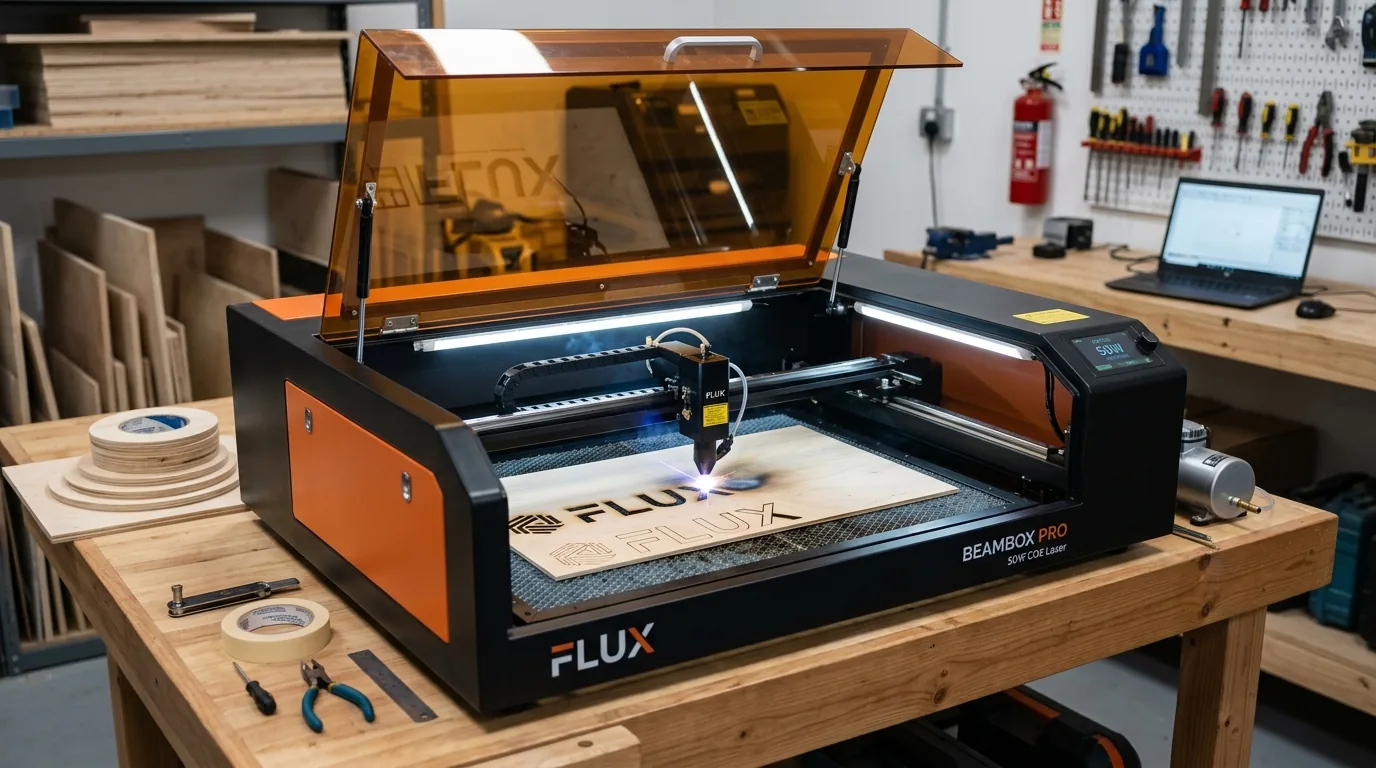
The Flux Beambox Pro 50W cuts 3mm basswood at 28 mm/s with 82% power in a single pass, delivering clean, char-free results when air assist is properly tuned. This guide covers exact machine settings, step-by-step calibration, troubleshooting, and how the Beambox Pro stacks up against competing CO₂ lasers for fast, reliable basswood cutting.
By Mike Dolan ·
| Material | Engraving Contrast | Cut Ease | Smoke / Odor | Cost | Beginner Score |
|---|---|---|---|---|---|
| Basswood (3 mm) | ★★★★★ | Excellent – 1 pass | Low | $ | ★★★★★ |
| Baltic Birch Plywood | ★★★★ | Good – 2–3 passes | Medium | $$ | ★★★★ |
| MDF | ★★★ | Good – 1–2 passes | High (formaldehyde) | $ | ★★ |
| Pine / Soft Plywood | ★★★ | Poor – resin deposits | Medium-High | $ | ★★ |
Why Is Basswood the Best Wood for the Flux Beambox Pro?
The enclosed CO₂ design and stable 50W output of the Flux Beambox Pro benefit enormously from basswood’s low resin content and predictable burn characteristics. Unlike pine or treated plywood, basswood cuts cleanly without depositing sticky residue on your lens or mirrors – critical for maintaining the optical precision an enclosed laser requires. According to USDA Forest Products Laboratory data, basswood ranks among the lowest-resin domestic hardwoods, making it ideal for both production work and protective lens longevity. When paired with proper prevention of charring when laser cutting, basswood delivers professional-grade results straight out of the Beambox.
- Low resin content – protects the CO₂ laser’s optical path and keeps your enclosed chamber clean, reducing maintenance intervals
- Consistent density – the same settings work batch after batch without retuning, perfect for production runs and repeatability
- Minimal char – produces clean cut edges with air assist enabled, eliminating scorching that mars finished goods
- Light, workable surface – easy to sand, paint, stain, or apply decals after cutting, broadening design possibilities
- No toxic fumes – unlike MDF or treated plywood, safe for indoor use with basic ventilation, letting you run longer sessions without health concern
What Are the Best Flux Beambox Pro Settings for 3mm Basswood?
All settings below are for Crafteker 3mm basswood sheets (12×12 inch, laser-grade). Use the Laser Settings Calculator to fine-tune for your specific unit if results differ.
| Machine | Cut Speed | Cut Power | Passes | Engrave Speed | Engrave Power | Air Assist |
|---|---|---|---|---|---|---|
| Flux Beambox Pro 50W | 28 mm/s | 82% | 1 pass | 380 mm/s | 32% | 30 PSI |
Note: Air assist is strongly recommended for the Flux Beambox Pro. Running 30 PSI through the enclosed chamber actively clears combustion gases from the cut path, which is the single biggest factor in achieving char-free edges on basswood – lower PSI allows smoke to linger in the kerf and deposit carbon on the cut walls. Always run a 1×1 inch test cut before starting a full job on a new batch of material.
The Crafteker 12-pack basswood sheets are purpose-built for enclosed CO₂ lasers like the Flux Beambox Pro – 12×12 inch, 3mm, laser-grade, void-free. $24.99 for 12 sheets ($2.08/sheet).
How Do I Get Clean Cuts on the Flux Beambox Pro? Step-by-Step
Clean cuts on the Flux Beambox Pro come down to three things: accurate focus, consistent air assist, and flat material. Follow these steps for reliable results:
- Set focus accurately. Use the Beambox Pro’s built-in autofocus sensor to set the correct focal height for 3mm material. After the sensor reads the surface, confirm the focus height in the Beam Studio software before sending the job – autofocus can occasionally misread warped sheets or edges near honeycomb gaps.
- Enable air assist at 30 PSI. The Beambox Pro supports an external compressor connected through the rear air assist port. Verify compressor output at the nozzle before cutting – insufficient airflow is the leading cause of excess charring on basswood, and no software setting compensates for it. For more detail on managing smoke and char, see our guide on how to prevent charring when laser cutting.
- Secure the basswood flat. Place the 3mm sheet directly on the Beambox Pro’s honeycomb bed and use the included hold-down pins or neodymium magnets at all four corners to eliminate any bow before the job starts.
- Run a test cut first. Cut a 2×2 inch square from a corner of the sheet before the full job. This confirms that focus, power, and air assist are dialed in – a clean cut-through with a pale brown edge means your basswood laser cutting settings are correct and you can proceed with confidence.
- Increase to 2 passes only if material is warped or unusually dense. If the first pass doesn’t cut through, check material flatness and re-confirm focus before adding a second pass. Extra passes at incorrect focus char the edges rather than completing the cut and will not produce the clean kerf that a single well-focused pass delivers.
- Clean the CO₂ lens after every 2–3 cutting sessions. The Beambox Pro’s lens is accessed by removing the laser head cover on the gantry. Even a light film of resin or smoke residue reduces beam power by 15–30%, which pushes single-pass cuts into borderline territory. Use 99% IPA on a lint-free cotton swab and wipe gently in a single direction.
How Does the Flux Beambox Pro Compare to Other Lasers for Basswood?
The Flux Beambox Pro 50W cuts 3mm basswood at 28 mm/s in a single pass – noticeably faster than the xTool P2 55W (typically 25 mm/s on comparable soft woods) and roughly on par with the Omtech 50W, which requires similar power settings but lacks the Beambox Pro’s integrated autofocus and enclosed airflow management. The Beambox Pro’s enclosed design gives it a real edge for hobby and semi-pro use: built-in safety, consistent air assist pressure, and a touchscreen workflow that cuts setup time significantly compared to open-frame machines. For Etsy sellers and batch cutters running production-level jobs on 3mm basswood, the Beambox Pro hits a reliable middle ground – faster and more hands-off than entry-level diode lasers, and considerably more affordable than industrial CO₂ systems. If you’re tuning settings across machines, Crafteker’s laser settings calculator helps dial in speed and power based on wattage and lens condition.
Why Isn’t My Flux Beambox Pro Cutting Through Basswood Cleanly?
Most incomplete cuts and excessive charring on the Flux Beambox Pro trace back to these four issues:
- Focus is off: The Beambox Pro’s autofocus sensor can drift over time – reset it manually using the built-in calibration routine and confirm focus height with a test card before each session.
- Air assist not running: Without active airflow, smoke and char re-deposit in the kerf as the laser cuts, blocking the beam. On the Beambox Pro, verify the compressor is outputting at least 30 PSI and that the nozzle is unobstructed – it’s one of the most effective ways to prevent charring when laser cutting soft woods like basswood.
- Inconsistent material: Craft-store plywood has glue pockets and variable density that make single-pass cuts unpredictable. Laser-grade basswood eliminates this variable – consistent wood means consistent single-pass cuts every time.
- Dirty lens: On the Beambox Pro, clean the CO₂ lens after every 2–3 cutting sessions using a cotton swab and 99% isopropyl alcohol. A fouled lens reduces effective beam power by 15–30%, which is often enough to prevent full cut-through at the 82% power setting.
Where to Buy Basswood Sheets for the Flux Beambox Pro
Crafteker 3mm basswood sheets are the best match for the Flux Beambox Pro – 12×12 inch, laser-grade, void-free, and pre-sanded to a consistent thickness. At $24.99 for 12 sheets ($2.08/sheet), it’s the most cost-effective option for consistent single-pass results. The uniform quality means the settings in this guide work reliably without re-tuning every batch. For a deeper look at what separates laser-grade from craft-store options, see our guide to the best basswood sheets for laser cutting.
Ready to cut? Get the wood that works with these settings:
→ Buy Crafteker 12-Pack Basswood Sheets on Amazon ($24.99)
Also available: 5-pack ($15.97) · 3-pack ($12.99)
Frequently Asked Questions
What are the best Flux Beambox Pro settings for 3mm basswood?
Cut at 28 mm/s, 82% power, 1 pass. Engrave at 380 mm/s, 32% power. Use 30 PSI air assist for pro-grade single-pass cuts with zero char. Clean cuts should be fully through with a pale brown edge and no surface scorching.
Is the Flux Beambox Pro good for cutting basswood?
Yes. The 50W CO₂ output and enclosed design deliver stable, repeatable cuts on 3mm basswood. The autofocus and touchscreen interface make tuning quick, and the airflow management prevents heavy charring on soft woods like basswood.
What is the best wood for the Flux Beambox Pro laser?
3mm laser-grade basswood from Crafteker. Low resin content means minimal charring, and consistent density ensures predictable cut speeds. At $2.08/sheet in the 12-pack, it’s also the most cost-effective material for production runs.
Can the Flux Beambox Pro cut 3mm basswood in one pass?
Yes. Using 28 mm/s speed and 82% power with 30 PSI air assist, the Beambox Pro cuts through 3mm Crafteker basswood cleanly in a single pass, saving time and reducing material warping.
Where can I buy basswood sheets for the Flux Beambox Pro?
Crafteker on Amazon: 3-pack $12.99, 5-pack $15.97, 12-pack $24.99 ($2.08/sheet). The 12-pack is the best value for production runs – each 12×12 inch sheet cuts multiple finished pieces.
About the author: Mike Dolan is a laser maker and wood materials specialist with 8+ years cutting basswood, birch, and MDF on diode and CO₂ machines. He tests every Crafteker basswood batch before listing.
Been running my Beambox Pro on basswood for about a year and these settings are spot on. 28 mm/s at 82% cuts clean through in one pass every time – no second pass needed with Crafteker sheets.