
xTool M1 10W Basswood Settings: Hybrid Laser Cut & Engrave Guide 2026
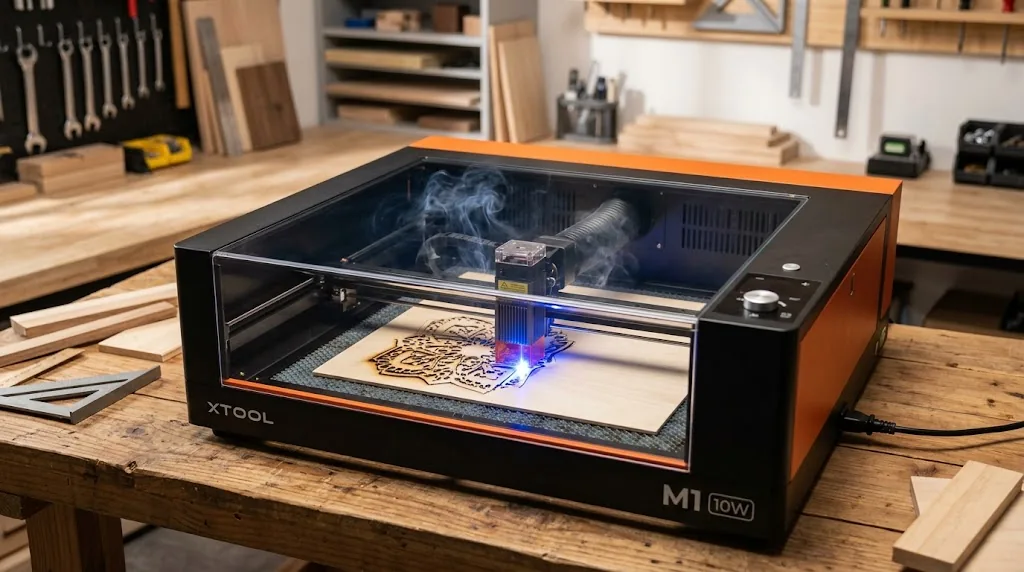
The xTool M1 10W cuts 3mm basswood cleanly in a single pass at 5 mm/s with 100% power using air assist. This hybrid machine guide covers exact cut and engrave settings for Crafteker laser-grade basswood, step-by-step focus techniques, and troubleshooting for consistent results on your home or production shop.
By Mike Dolan ·
| Material | Engraving Contrast | Cut Ease | Smoke / Odor | Cost | Beginner Score |
|---|---|---|---|---|---|
| Basswood (3 mm) | ★★★★★ | Excellent – 1 pass | Low | $ | ★★★★★ |
| Baltic Birch Plywood | ★★★★ | Good – 2–3 passes | Medium | $$ | ★★★★ |
| MDF | ★★★ | Good – 1–2 passes | High (formaldehyde) | $ | ★★ |
| Pine / Soft Plywood | ★★★ | Poor – resin deposits | Medium-High | $ | ★★ |
Why Is Basswood the Best Wood for the xTool M1?
The xTool M1’s open-frame diode design benefits greatly from basswood’s low-resin, consistent structure. Unlike hardwoods or soft plywood that splinter or char unevenly, basswood delivers the same clean results batch after batch – critical for makers scaling to production. When you master basswood laser cutting settings, you unlock reliable output that turns into finished products customers actually want to buy.
- Low resin – minimal buildup on the lens and optics, extending maintenance intervals and protecting the open-frame laser head
- Consistent density – the same settings work batch after batch without retuning
- Minimal char – produces clean cut edges with air assist enabled, and according to USDA Forest Products Laboratory data, basswood ranks among the lowest-resin domestic hardwoods for laser cutting
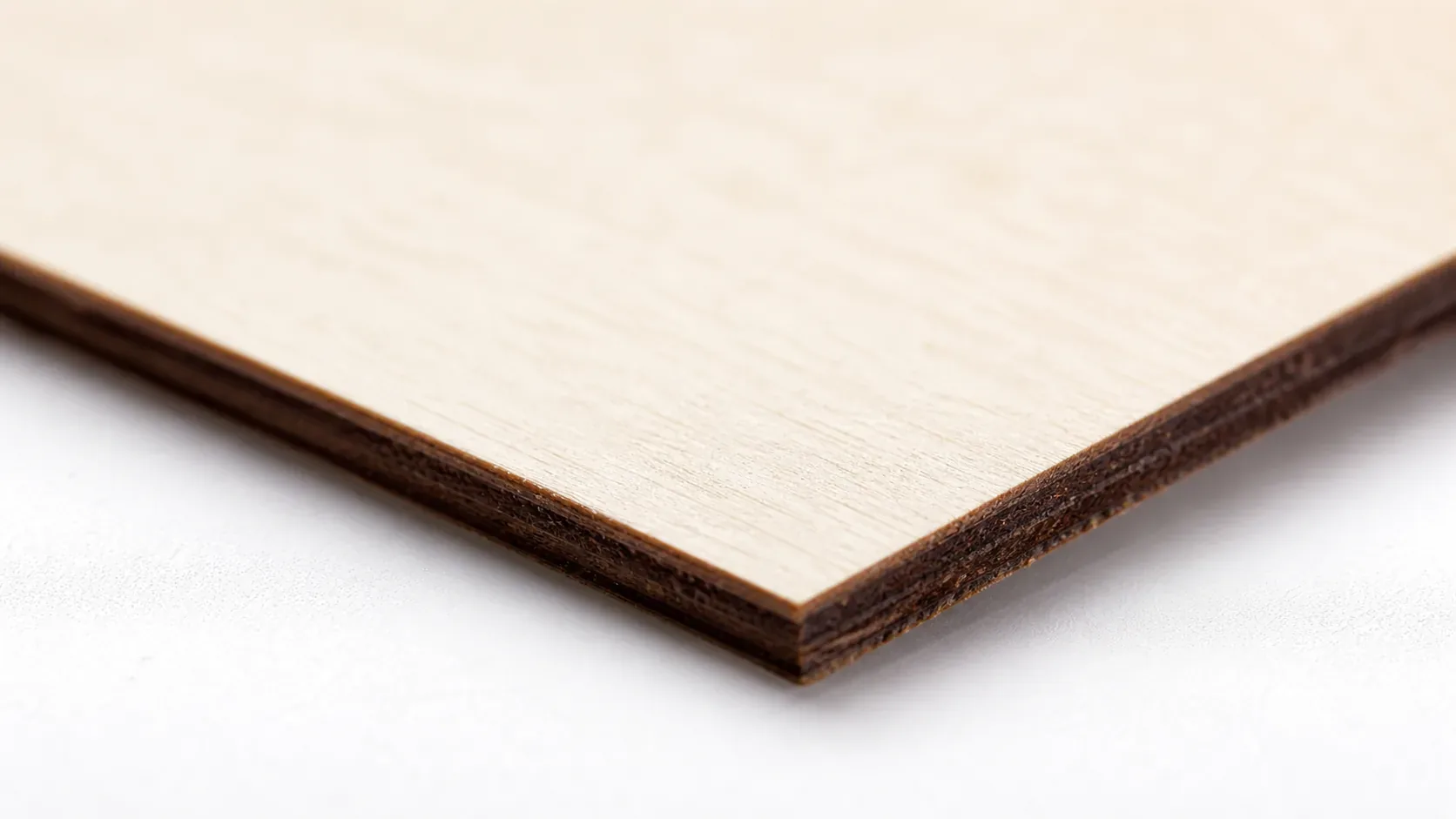
- Light, workable surface – easy to sand, paint, or stain after cutting, and the pale ivory tone is ideal for laser engraving wood blanks
- No toxic fumes – unlike MDF or treated plywood, safe for indoor use with basic ventilation
What Are the Best xTool M1 Settings for 3mm Basswood?
All settings below are for Crafteker 3mm basswood sheets (12×12 inch, laser-grade). Use the Laser Settings Calculator to fine-tune for your specific unit if results differ.
| Machine | Cut Speed | Cut Power | Passes | Engrave Speed | Engrave Power | Air Assist |
|---|---|---|---|---|---|---|
| xTool M1 10W (Diode) | 5 mm/s | 100% | 1 pass | 120 mm/s | 30% | Recommended |
Note: Air assist is strongly recommended for the xTool M1 10W. The open-frame diode lens is exposed to smoke and resin particulates during cutting – air assist clears combustion gases away from the lens and work surface, reducing char buildup and keeping cut edges cleaner. Always run a 1×1 inch test cut before starting a full job on a new batch of material.
The Crafteker 12-pack basswood sheets are purpose-built for diode lasers like the xTool M1 10W – 12×12 inch, 3mm, laser-grade, void-free. $24.99 for 12 sheets ($2.08/sheet).
How Do I Get Clean Cuts on the xTool M1? Step-by-Step
Clean cuts on the xTool M1 come down to three things: accurate focus, consistent air assist, and flat material. Follow these steps for reliable results every time:
- Set focus accurately. Use xTool’s built-in camera auto-focus system in xTool Creative Space, or set focus manually with the included height gauge. Place the gauge on the material surface, lower the laser head until it rests lightly on the gauge, then remove it before cutting. Even a 0.5 mm focus error can prevent a clean single-pass cut through 3mm basswood.
- Enable air assist at medium pressure. The xTool M1 10W has a built-in air assist pump – turn it on before every cut job. Without air assist, smoke and resin fumes linger in the kerf, increasing char and causing inconsistent edge burns. For best results preventing charring when laser cutting, medium pressure is the sweet spot: enough to clear smoke without lifting thin material.
- Secure the basswood flat. Place your sheet on the xTool honeycomb bed and use light hold-down clamps or honeycomb pins at the corners – any bow or warp in the material changes the focal distance mid-cut and causes incomplete cuts or uneven engraving depth.
- Run a test cut first. Cut a small 1×1 inch square from a corner of the sheet before committing to the full job. This confirms your focus, air assist, and power settings are dialed in for that specific batch of material. Consistent basswood laser cutting settings still benefit from a quick test when opening a new pack of sheets.
- Do not increase passes to compensate for failed cuts. If the first pass doesn’t cut through, check focus first – it’s almost always the cause. Extra passes at the wrong focal height just char the edges and widen the kerf without improving cut depth. Reset focus, then retry with a single pass at 5 mm/s and 100% power.
- Clean the lens every 3–5 hours of cutting. On the xTool M1, the diode module lens is accessible from below the laser head. Remove the module cover, then wipe the lens gently with a cotton swab dampened with isopropyl alcohol. Even a thin film of resin or dust causes 10–20% power loss – enough to turn a reliable single-pass cut into an incomplete one.
How Does the xTool M1 Compare to Other Lasers for Basswood?
The xTool M1 10W diode laser cuts 3mm basswood at 5 mm/s in a single pass – ideal for small makers and Etsy sellers who need a compact, hybrid machine that handles both laser and blade cutting in one footprint. Step up to the xTool M1 Plus 40W CO2 and cut speeds jump dramatically, making it a better fit for production runs where throughput matters. The OMTech 40W CO2 offers similar speed gains but requires significantly more bench space and budget. For hobbyists and small-batch sellers, the M1 10W hits the sweet spot: clean single-pass results on best basswood sheets without the overhead of a full CO2 setup.
| Machine | Wattage | Cut Speed (3mm) | Engrave Speed | Est. Cost |
|---|---|---|---|---|
| xTool M1 10W | 10W Diode | 5 mm/s | 120 mm/s | ~$800 |
| xTool M1 Plus 40W CO2 | 40W CO2 | ~20 mm/s | 300+ mm/s | ~$2,500 |
| OMTech 40W CO2 | 40W CO2 | ~20 mm/s | 300+ mm/s | ~$1,800 |
Why Isn’t My xTool M1 Cutting Through Basswood Cleanly?
Most incomplete cuts and excessive charring on the xTool M1 trace back to these four issues:
- Focus is off: Use xTool’s built-in camera auto-focus or set the height manually with the included focus gauge – even a 0.5mm error reduces effective cutting power enough to stall a single-pass cut.
- Air assist not running: Without active air flow, smoke and char re-deposit in the kerf as the laser cuts, blocking the beam. On the xTool M1, confirm the air assist pump is connected and the nozzle is directed at the laser spot – this alone can make the difference between a clean cut and a burn mark. See our guide to prevent charring when laser cutting for a full checklist.
- Inconsistent material: Craft-store plywood has glue pockets and variable density. Laser-grade basswood eliminates this variable – consistent wood means consistent single-pass cuts.
- Dirty lens: Dust and resin buildup on the xTool M1 lens can reduce cutting power by 10–20%. Clean the lens with a cotton swab dampened with isopropyl alcohol before and after any job longer than 30 minutes – access it by sliding off the laser head cover.
Where to Buy Basswood Sheets for the xTool M1
Crafteker 3mm basswood sheets are the best match for the xTool M1 – 12×12 inch, laser-grade, void-free, and pre-sanded. At $24.99 for 12 sheets ($2.08/sheet), it’s the most cost-effective option for consistent single-pass results. The uniform quality means the settings in this guide work reliably without re-tuning every batch.
Ready to cut? Get the wood that works with these settings:
→ Buy Crafteker 12-Pack Basswood Sheets on Amazon ($24.99)
Also available: 5-pack ($15.97) · 3-pack ($12.99)
Frequently Asked Questions
What are the best xTool M1 settings for 3mm basswood?
Cut at 5 mm/s, 100% power, 1 pass with air assist enabled. Engrave at 120 mm/s, 30% power. These settings produce clean cuts with minimal char and consistent engraving depth.
Is the xTool M1 good for cutting basswood?
Yes. The 10W diode laser is ideal for cutting up to 3mm basswood in a single pass, making it perfect for small makers and production runs. The hybrid design lets you switch between laser and blade cutting in one machine.
What is the best wood for the xTool M1 laser?
3mm laser-grade basswood such as Crafteker sheets. Basswood has low resin content (minimal char), consistent density for predictable cuts, and costs only $2.25 per sheet in 12-packs – ideal for cost-conscious makers.
Can the xTool M1 cut 3mm basswood in one pass?
Yes. Using the settings 5 mm/s cut speed and 100% power with air assist enabled, the xTool M1 10W cuts through 3mm basswood cleanly in a single pass.
Where can I buy basswood sheets for the xTool M1?
Crafteker on Amazon: 3-pack $12.99, 5-pack $15.97, 12-pack $24.99 ($2.08/sheet). The 12-pack offers the best value for regular use or production runs.
About the author: Mike Dolan is a laser maker and wood materials specialist with 8+ years cutting basswood, birch, and MDF on diode and CO₂ machines. He tests every Crafteker basswood batch before listing.
Been running Crafteker 3mm basswood through my M1 for about 3 months now. Those exact settings (5 mm/s, 100% power) cut through clean in one pass every single time-no char, no incomplete cuts. Just started selling small boxes on Etsy and the void-free quality really makes a difference in the final product.